Breakdown Assistant Toolbar
The Breakdown Assistant toolbar is an accessible menu that allows you to apply breakdowns and in-betweens to your animation. From the Breakdown Assistant toolbar, you can apply breakdowns and in-betweens, source the element that will be affected by the Breakdown Assistant as well as customize the Breakdown Assistant settings.

 Applying breakdowns and in-betweens using the Breakdown Assistant Toolbar
-
Select an empty cell in the Timeline view.
-
Open the Breakdown Assistant view by right-clicking the Toolbar > Select Breakdown Assistant.
-
Select one of the following Selection Modes:
-
Timeline.
-
Nodes.
-
Auto.
For more information, see Selection Modes.
-
-
Select a percentage value for your breakdown to favour using one of the following:
-
Percentage.
-
Nudge.
-
Slider.
-
For more information, see Applying Breakdowns.
 icons on the Breakdown Assistant toolbar represent the slider. When pressed the slider will open and you will be able to select a percentage value manually. You will not need to hold your click as the slider will snap to your mouse. When you click a value or stop moving your mouse, the slider will be set.
Settings
On the end of the Breakdown Assistant toolbar there is a dropdown menu that will allow you to affect the settings of the Breakdown Assistant. You can affect the sliders, selection mode as well as edit buttons.
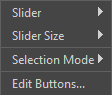
How to access the Settings Menu
-
Open the Breakdown Assistant view by right-clicking the Toolbar > Select Breakdown Assistant.
-
Select the dropdown menu icon on the end of the Breakdown Assistant toolbar.
The following are the menu options that will appear when you open the settings:
Slider
The Slider submenu will enable you to control the parameters surrounding the slider on the Breakdown Assistant toolbar.
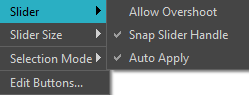
When the Slider is selected, the following options will open in a dropdown menu:
-
Allow Overshoots: Allows the slider to exceed the original position of the keyframe.
NOTE By enabling Allow Overshoot, the values on the slider will range from -150 to 150 allowing to set a breakdown key that exceeds the previous and following keys on the timeline. This will allow you to apply anticipation and overshoots.TIP Any value larger than -100 will produce an anticipation. Any value that exceeds 100 will produce an overshoot. -
Snap Slider Handle: The slider handle will link to and follow the cursor.
-
Auto-Apply: The breakdown will be added to the timeline when the cursor stops moving along the slider. The breakdown will be made regardless of if you released the left click.
Slider Size
The Slider Size submenu will enable you to select the physical size of your slider on the Breakdown Assistant toolbar.
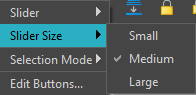
You can pick from the following options:
-
Small
-
Medium
-
Large
Selection Mode
The Selection Mode submenu will enable you to specify where to source the element being assigned a breakdown based on the selection in the Timeline view, the Node view or Auto.
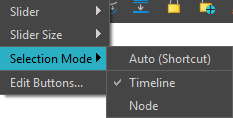
For more information about selection modes, see Selection Mode.
Edit Buttons
The Edit Buttons submenu will enable you to set the values in the percentage and nudge buttons for both the Breakdown Assistant view and Breakdown Assistant toolbar.
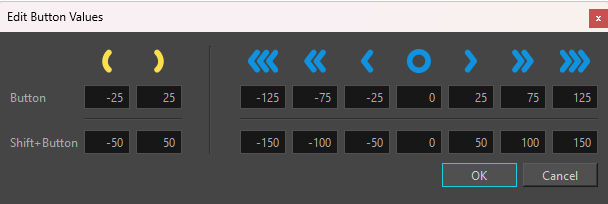
Both the percentage and nudge values have a secondary list of values. By pressing Shift, the percentage values will change. The values in the primary and secondary menu are determined by the value assigned in the Edit Buttons dialog.
How to change the percentage values using the Edit Buttons dialog
-
Open the Breakdown Assistant view by right-clicking the Toolbar > Select Breakdown Assistant.
-
Select the dropdown menu icon on the end of the Breakdown Assistant toolbar.
-
Select Edit Buttons.
The Edit Buttons dialog will appear.
-
Select a value for one of the following:
-
Button.
TIP These are the values of the primary list. -
Shit+Button.
TIP These are the values on the secondary list.
-
-
Input a new value.
-
Click OK.
You can change as many of as few values in the Edit Buttons values as you desire. It is important to mind the icons on top of the value being changed. The icons above will indicate whether they are the nudge previous, nudged forward or a set percentage value towards the previous keyframe or the next keyframe buttons.