Using Ember
Generate Scene Length with Ember
Toon Boom Ember offers you a range of tools to enhance your workflow. By opting into Ember, you will be able to automate time consuming and repetitive tasks and enhance visual quality of lower resolution images. Toon Boom has collaborated with AI providers to facilitate the integration of Ember into your creative pipeline.
By default the Ember Features are disabled. In order to be enabled, you will need a license for both Storyboard Pro and Ember as well as to enable the Ember Features in the Preferences dialog.
After enabling Ember, you will be required to relaunch the software in order to access the Ember tools.
If you are not using a subscription license, you will need to request a free Ember license add-on by sending an email to licensor@toonboom.com. Please include the email address linked to your Toon Boom account in the email.
You require an Ember credit balance in order to use Ember. The Show Ember Credits will display the amount of Ember functionalities that have been consumed using Ember in your current project. You can refer to these credits to see how much you have consumed.
For more information about Ember credits, see Activating Ember.
Ember Masking
Ember Masking allows you to isolate individual elements in an imported image. Once isolated, these elements can be removed and substituted by Ember.
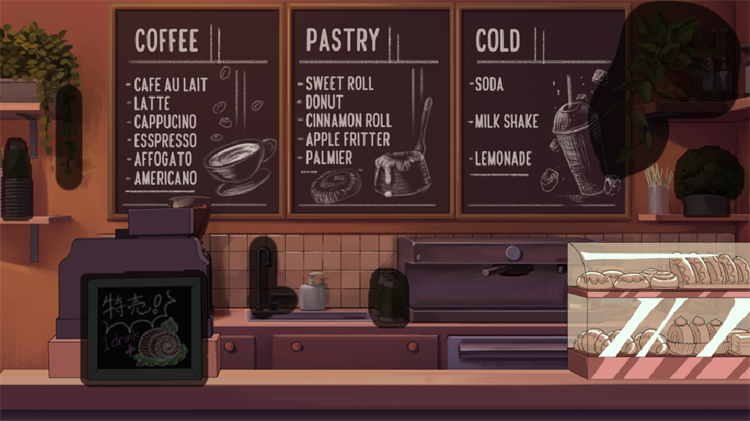
Depending on the sharpness, level of contrast and resolution of the image, Ember can distinguish specific details. The sharper the image and the higher the resolution, the more accurate Ember will be when processing your image.
You can use the following Ember Masking tools to apply an Ember Mask:
-
 Ember Mask Selector.
 -
 Ember Mask Brush.
 -
 Ember Mask Eraser.
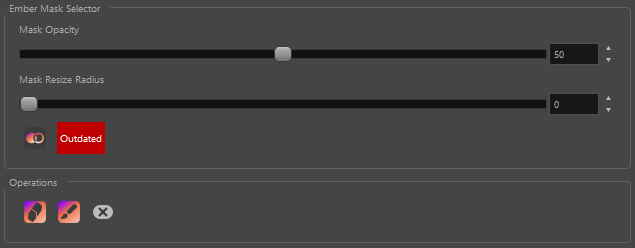
You can use both the Ember Mask Selector and Ember Mask Brush to mask your image. The Ember Mask Selector will select shapes and objects detected by Ember once an Ember Mask has been generated. Meanwhile the Ember Mask Brush is a pressure sensitive brush that applies an Ember Mask by drawing strokes over your image.
MacOS: /private/tmp/ToonBoomTempDir
Windows11: C:\Users\*username*\AppData\Local\Temp\ToonBoomTempDir
 How to Generate an Ember Mask
-
Select the
Ember Mask Selector tool. -
Select your
-
Open the Tool Properties view.
-
Click the
 Generate Ember Masks icon.
A progress bar will appear, uploading your image to the server to be processed by Ember.
Once you have created your Ember masks using the Ember Mask Selector, Ember Mask Brush or both, you can use the Ember Generative Fill operation to generate visual content based on written prompts. The prompts that are entered into the Ember Generative Fill window will generate content and reconstruct the image by replacing the masked elements with whatever the Ember processor believes would exist in its place.
How to Use the Ember Generative Fill
-
Apply masks to your image using the Ember Masking tools.
-
Open Tool Properties.
-
Select
 Ember Generative Fill from the Tool Properties.
The Ember Generative Fill window will appear.
-
In the Prompt textbox, add text to describe what you would like the Ember to generate in your image.
NOTE It is very important to be specific when creating prompts for the Ember processor to generate. -
Click Generate.

A progress bar will appear as your image is processed with Ember.
Once processed, the Ember Generative Fill dialog will open.
-
Review the image generated based on your prompts.
-
Click OK.
Once you click OK, a new exposure will be created with the generated image.
 Show Original Image icon.
Once your Ember masks are applied, you can use the Ember Erase operation to remove any elements that are masked and reconstruct the image by replacing the masked elements with whatever Ember believes would exist in its place.
How to Use Ember Erase
-
Apply masks to your image using the Ember Masking tools.
-
Open Tool Properties.
-
Select
 Ember Erase from the Operation options.
A progress bar will appear as your image is processed with Ember.
Once processed, the Ember Erase dialog will open.
-
Click OK.
Once you click OK, a new layer containing the generated image will be created above the original image layer.
Show Original Image icon.
Expand Image
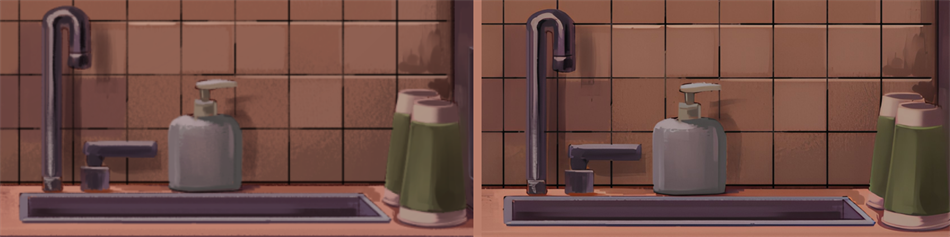
The Expand Image operation allows you to enlarge your bitmap images without sacrificing image resolution. Any images that need to be scaled up will be processed with Ember to generate an extension to the existing image. The Ember operation can also be used to expand an image to fit the boundary of a static or dynamic camera.
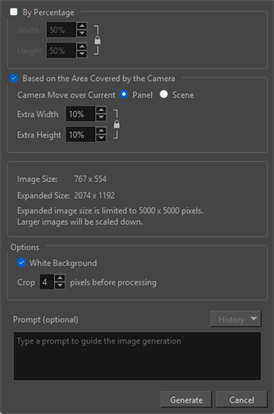
You can opt to use the Prompt textbox in order to generate content in the expanded regions of your image. The Prompt textbox is available when expanding your image both by Percentage and Based on the Area Covered by the Camera. Whatever is written into the Prompt textbox will be additive. Ember will interpret what is written when generating new content for the expanded section of your image. For this reason, it is important to be specific when writing text into the Prompt textbox so that Ember can more accurately interpret your vision.
Any text written into the Prompt textbox will be saved in the History dropdown list. When utilizing Ember prompts on other images, you can access the history to use the same prompts or other saved prompts that have been previously input.
You can expand your image the following ways:
-
By Percentage: Scale up your image using a percentage value. When the percentage option is checked, Ember will expand your image based on a percentage of the total resolution of the selected image.
-
Based on the Area Covered by the Camera: Scale up your image using the Based on the Area Covered by the Camera option. This option will expand your image to fit within the camera’s view and apply padding to ensure your image is action safe.
How to Use Expand Image
-
Select your image.
-
Select
-
Open the Ember Operations dropdown menu.
-
Select Expand Image.
The Expand Image dialog will appear.
-
Select one of the following checkboxes:
-
By Percentage.
-
Based on the Area Covered by the Camera.
-
-
Input the percentage values in the X and Y-axes.
-
Optionally: In the Prompt textbox, add text to describe what you would like Ember to generate in the expanded portion of your image.
NOTE It is very important to be specific when creating prompts for Ember to generate. -
Click Generate.
The Expand Image window will appear.
-
Review the processed expanded image.
-
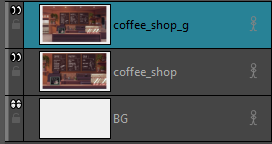
Click OK.
Increase Image Resolution
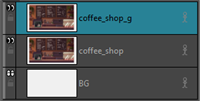
You can increase the resolution of bitmap images on both bitmap and vector layers. However, when an image on a vector layer is processed using this Ember operation, the generated image will be a soft rendered texture on a vector layer.
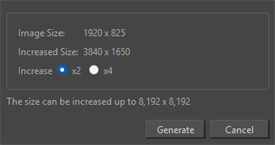
How to Use Increase Image Resolution
-
Select your image.
-
Select
-
Open the Ember Operations dropdown menu.
-
Select Increase Image Resolution.
The Increase Image Resolution dialog will open.
-
Select the increase multiplier x2 or x4.
-
Click Generate.
A progress bar will appear.
Analyze Script with Ember
The Analyze Script with Ember tool processes unformatted scripts and breaks them down into their basic components. These unformatted scripts are input and converted into panels and scenes in the Panel and Timeline view. In order for Ember to read the unformatted scripts, it must be imported into the Storyboard view.
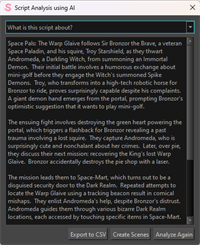
How to Use Analyze Script with Ember
-
Import a script file.
NOTE The script you import should be in .txt of .rtf format. -
Select File.
-
Open the Ember Tools dropdown menu.
-
Click Analyze Script with Ember.
The Script Analysis using Ember dialog will appear.
-
Click Analyze.
Storyboard Pro will send the script to the server to analyze.
-
Click Create Scenes or Export to CSV.
Select Character Voice
The Select Character Voice operation will apply an Ember voice to the characters in your script to recite dialogue. The Select Character Voice operation will compile a list of the characters in your script from the Panel view. Once compiled, you can apply an Ember voice to each character from the list of Predefined Voices in the Select Character Voice dialog. You can use the Select Character Voice to apply an Ember voice to your storyboard. This can help to differentiate your different characters and help you time your sequences.
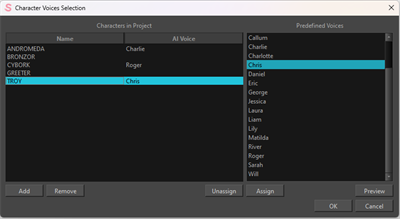
How to use Select Character Voice
-
Select File.
-
Open the Ember Tools dropdown menu.
-
Click Select Character Voices.
The Select Character Voices dialog will appear.
-
Select a character from the Name list.
-
Select an Ember voice from the Predefined Voices list.
-
Click Assign.
-
Repeat until all your characters have an Ember voice assigned.
-
Click OK.
Generate Scene Length with Ember
The Generate Scene Length with Ember operation will set the timing of your storyboard panels and scenes based off of the dialogue in your script. Your script will need to be broken down into its individual panels and scenes in both the Panel view and Timeline view.
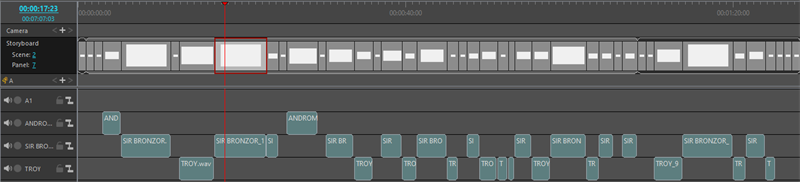
The Generate Scene Length with Ember will extract all the dialogue information from the Panels view and Ember will set the timing based on how it interprets the dialogue when processing.
How to Generate Scene Length with Ember
-
Select File.
-
Open the Ember Tools dropdown menu.
-
Click Generate Scene Length with Ember.
The Scene Generation Options dialog will appear.
-
Select one of the following:
-
All scenes and panels.
-
Selected scenes and panels.
NOTE You will need to select your panels prior.
-
-
Select one of the following:
-
Selected Ember voices.
TIP The Selected Ember voices will be the Ember Voices assigned in the Select Character Voice dialog. -
Default Ember voices.
-
-
Select Create Rough Tracks if you want audio to be generated.
-
Select whether or not you would like to add padding to your panels.
-
Click Generate with Ember.