Activating Ember
Toon Boom Ember offers you a range of tools to enhance your workflow. By opting into Ember, you will be able to automate time consuming and repetitive tasks and enhance visual quality of lower resolution images. Toon Boom has collaborated with AI providers to facilitate the integration of Ember into your creative pipeline.
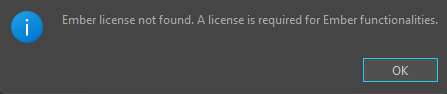
In order for Ember to be enabled, you will need a license for both Storyboard Pro 25 and Ember. With both licenses active, you will have access to the Ember tools offered in the software.
If you are not using a subscription license, you will need to request a free Ember license add-on by sending an email to licensor@toonboom.com. Please include the email address linked to your Toon Boom account in the email.
Preferences
By default the Ember functionalities are disabled and the Ember tools are not active or visible in the interface. In order to access the Ember tools and interface, you will need to activate Ember functionalities in the Preferences dialog.
 How to Enable Ember
-
Start Storyboard Pro and open or create a scene.
-
Select Edit > Preferences.
The Preferences dialog will appear.
-
Go to the Advanced tab and activate the Enable Ember Functionalities preference at the bottom of the dialog.

-
Close and relaunch Storyboard Pro 25.
Upon relaunch, Ember will be active and the Ember tools will be visible and accessible on the interface.
Ember Credits
The Show Ember Credits will display the amount of Ember functionalities that have been consumed in your current project. You can refer to these credits to see how much you have consumed, as well as how many Ember credits you have in total. You require an Ember credit balance in order to use Ember.
How to view Ember Credits
-
At the top of the interface, select Help.
-
Select Show Ember Credits.