Thumbnailing Page
The Thumbnailing Page is a special drawing layer where you can sketch thumbnails into prepared numbered panels. These panels are proportional to the project’s scene resolution. The Thumbnailing Page is ideal for sketching out concepts and ideas as all your drawings can be made on a single prepared drawing layer with a proportional guide to draw in.
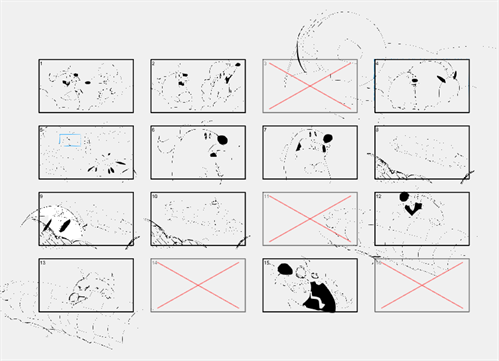
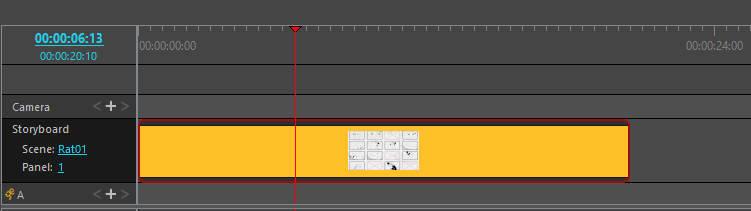
Each new Thumbnailing Page will generate a new Scene in the Timeline view. The length of the scene can be adjusted like any other scene in Storyboard Pro. The thumbnails contained within the Thumbnailing Page in your scene can be converted to panels on the timeline.
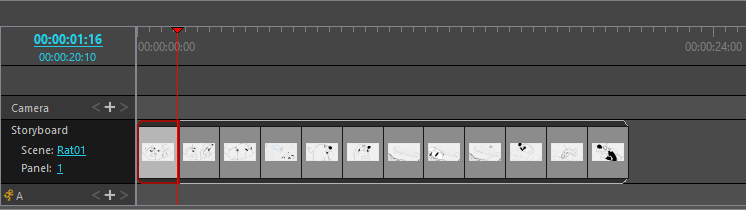
Using the Convert to Panels operation, the thumbnails on the Thumbnailing Page will be converted into Panels on the timeline. Depending on how the thumbnails are laid out, the numbered panels will be transferred to the timeline in the form of either a Scene containing several panels or several individual scenes.
 How to create a Thumbnailing Page
-
Click Storyboard.
-
Select New > New Thumbnailing Page.
Once you click New Thumbnailing Page, numbered panels will appear in the Drawing view.
You can also access the Thumbnailing Page, by clicking the Thumbnailing Page icon.
For more information about how to add the Thumbnailing Page icon to the Toolbar, see Customizing Toolbars.
For more information about changing the colour of the Thumbnailing Page, see Colours Preferences.
You can also import images to fit within the parameters set in the Thumbnailing Page Options. When you import a bitmap drawing, your imported image will fit the boundary of the Thumbnailing Page.
You can import a bitmap image into your Thumbnail Page one of the following three ways:
-
File > Import > Image as Layer.
-
Dropping your file into the Stage or Camera view.
-
Dropping your file to the layers list
Upon import, the dimensions of your image will expand or shrink to fit the height and width of the panels on the Thumbnailing Page. The size of your image will depend on the amount of columns and rows that you have set in the Thumbnailing Page Properties.
When the Thumbnailing Page is created, the panels will scale proportionally based on the view you are in. When in the Camera view, each thumbnail will scale up so that each panel will fit the view of the camera. When in the Stage view, all the thumbnail panels will display an overview of all the frames.
The panels in the thumbnailing view can be exported to PDF sheets. The Thumnailing Page can be exported both as a Thumbnailing Page or converted into several Scenes and Panels. You do not need to use the Convert to Panels parameter in order to do so. When exporting your Thumbnailing Page, the default will be to export one page with all your thumbnails per scene.
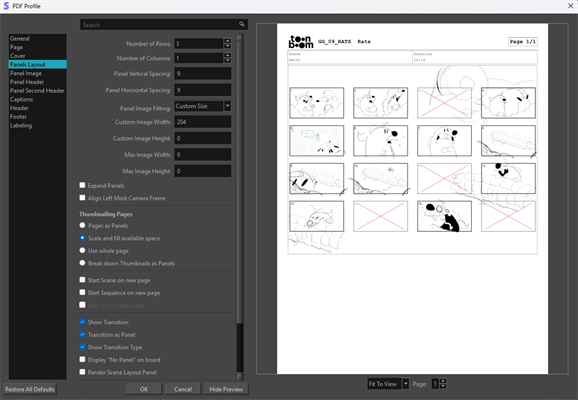
For more information about exporting your thumbnails, see Exporting the Thumbnailing Page.