Recording Audio
You can record new dialogue from the Adjust Dialogue Intonation with AI dialog. The new dialogue that you record can either replace the existing audio clips or be used to augment the AI voice assigned to your character. Every time you create a new recording, a take (version) will be added to the Take list in the Adjust Dialogue Intonation with AI dialog.
For more information about augmenting the audio with your recording, see AI Processing.
In order to record audio for your project, you will need to have a microphone. The Microphone dropdown menu in the Adjust Dialogue Intonation with AI dialog will display all the microphones that Storyboard Pro recognizes are input on your current machine.
 How to record audio
-
Select a Panel with dialog.
-
Do one of the following:
-
Click the
 Adjust Dialogue Intonation with AI icon on the Dialog section of the Panel view.
 -
Select the drop down menu at the end of the Dialog section of the Panel view > Select Adjust Dialogue Intonation with AI.
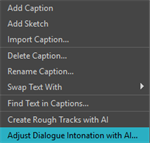
The Adjust Dialogue Intonation with AI dialog will open.
-
-
Select a character’s dialogue from the Dialogue List.
-
Click
 Start Recording.
A new Take will be generated.
-
Recite the lines of dialogue from your script into a microphone.
-
Click
 Stop Recording.
An audio envelope will appear.
-
Click
 Play recorded audio.
 -
Preview your recorded dialogue.
For more information about previewing your recorded audio, see Audio Playback.
-
When satisfied with the recording, click
 Generate from recording.
The recorded audio will be sent to the AI server for processing.
-
Do one of the following:
-
Click OK.
-
Click Apply.
-
Everytime you click the Start Recording button, the Adjust Dialogue Intonation with AI dialog will generate a new Take. A take is a new version of the audio being recorded. This will enable you to record multiple versions of yourself reciting dialogue and select your preferred Take before sending it to the AI server for processing.

In order to select the audio version you want to process with AI or apply to your dialogue, you will need to select the Take from the Take List. The Take displayed will be the one that is applied when you click the AI processing buttons and OK or Apply.