Generate from original audio
The  Generate from original audio will enable you to change or apply an AI voice to your dialogue preserving the original intonations and audio quality of the original audio file. This will enable you to apply an AI voice or change the pre-existing AI voice without changing the intonation, pacing, tone, inflections or other vocal qualities that exist in the audio.
 How to Generate from original audio
-
Select a Panel with dialog.
-
Do one of the following:
-
Click the
 Adjust Dialogue Intonation with AI icon on the Dialog section of the Panel view.
 -
Select the drop down menu at the end of the Dialog section of the Panel view > Select Adjust Dialogue Intonation with AI.
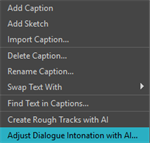
The Adjust Dialogue Intonation with AI dialog will open.
-
-
Select an audio track.
-
Click
Generate from original audio.The audio clip will be sent to the AI server for processing.
-
Do one of the following:
-
Click OK.
-
Click Apply.
-
If you want to change an existing AI voice using the Adjust Dialogue Intonation with AI dialog, you will need to reassign the AI voice selected in the Select Character Voices dialog prior to using the Generate from original audio operation. If you don't, the AI voice will not be changed when sent to the server.
For more information about selecting a new character voice, see Select Character Voices.