SB Preview
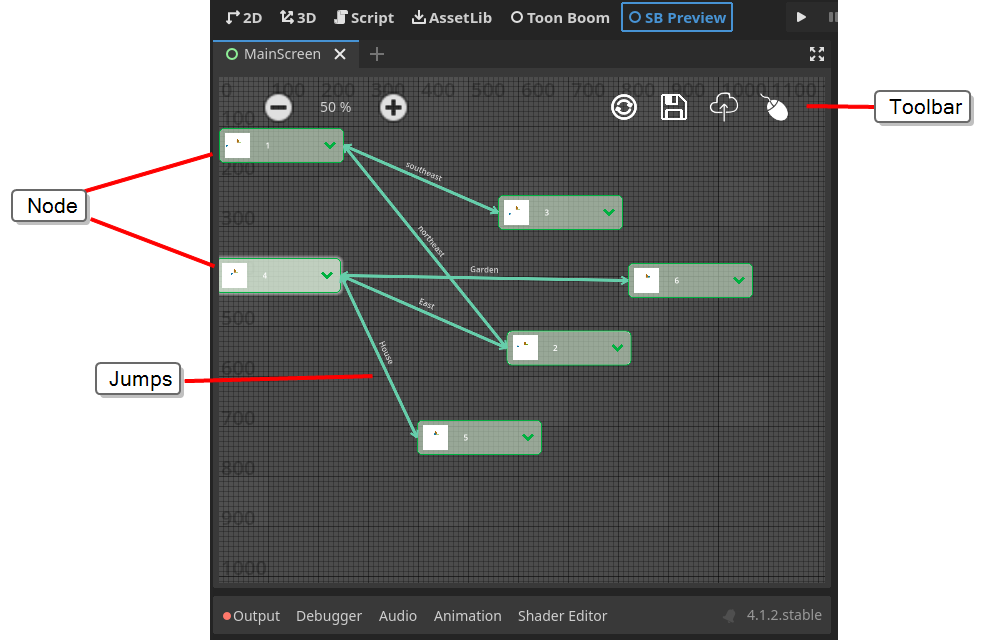
The SB Preview view displays a flowchart mapping the entire game storyboard and its jumps created in the Game Storyboard application. For information on the Game Storyboard application, see the Game Storyboard Knowledge Centre.
From the SB Preview view, it is possible to create new jumps, panels, and scenes. It may be easier to create the jumps in the SB Preview view rather than in Game Storyboard as it presents a bird’s eye view of all scene connections. For information on creating jumps in the SB Preview view, see Jumps.
All updates made to the SB Preview within Godot can be synched to the Game Storyboard project. Similarly, all changes made in Game Storyboard can be synched to the Storyboard Preview in Godot. See Synching Data with Game Storyboard.
Nodes
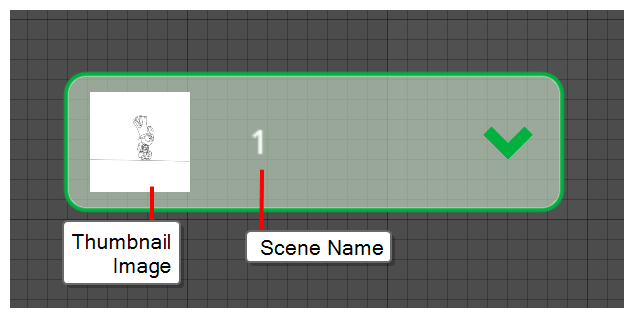
In the SB Preview view, each scene is represented by a node. Each node contains a thumbnail image and the scene name. The nodes are available for configuration in Scene Details in the Inspector.
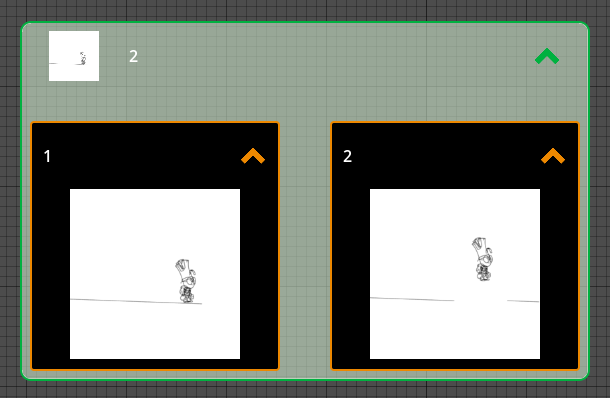
If you click the chevron and expand the node, all of the scene's panels will display. You may reorder the panels by clicking and dragging and dropping them to another spot in the node.
Selecting Multiple Nodes
Holding Shift will allow for the selection of multiple nodes and panels. In addition, you may also use the marquee by clicking dragging your pointer across several nodes.
 How select multiple nodes or panels
-
Hold the Shift key and select multiple nodes or panels.
Multiple nodes or panels are selected.
You may also use the marquee tool by clicking and dragging your pointer across several nodes.
Deselecting Multiple Nodes
To deselect nodes and panels from the multiple selection, click each individual nodes or panel while holding Shift
How deselect multiple nodes or panels
-
Hold the Shift key and click each highlighted node or panel.
Toolbar

In the toolbar at the top of the view, you may sync data with Game Storyboard, save changes, and enable tooltips.
| Icon | Name | Description |
|---|---|---|

|
Load data from game studio storyboard | When clicked, all changes in Game Storyboard such as new and removed jumps, panels, and scenes will appear in the SB view. |

|
Save game studio storyboard changes | Saves all changes created in the SB view. |

|
Push changes from SB preview to game studio storyboard | When clicked, all newly created and modified jumps, scenes, and panels in SB view will appear in Game Storyboard. |

|
Show/hide mouse tooltips on hovering over objects | When clicked, tooltips will be enabled. A message describing each tool will display upon hover. |

|
Zoom in | Will zoom out of the flowchart. |

|
Zoom out | Will zoom in to flowchart. |