Effect Stack View

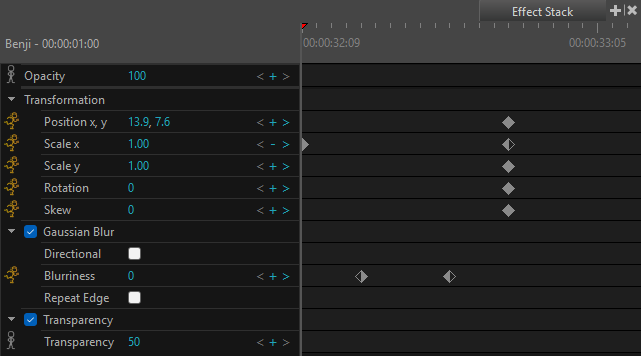
The Effect Stack view is used to apply effects to drawing layers and edit sound clips by layering effects onto the clip. The parameters of these effects can be adjusted to fine tune the desired result.
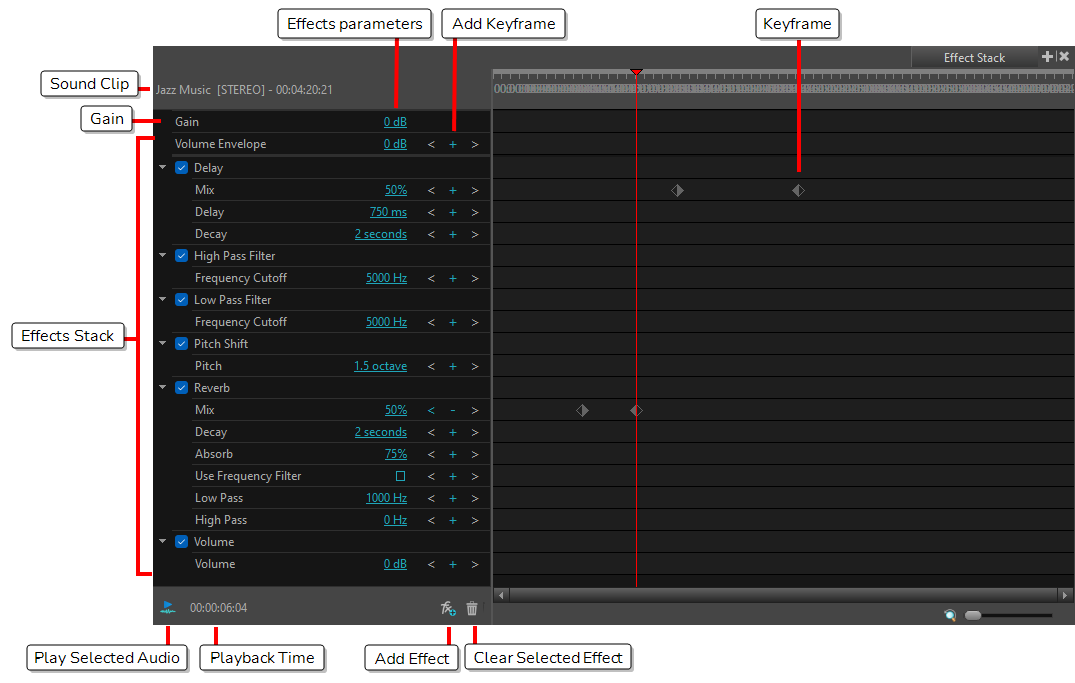
Sound Clip Where the selected sound clip name is displayed. This includes the file name, file format and whether the file is mono or stereo (indicated in square brackets). The sound clip name is followed by the current time location of the playhead in the Timeline view.
Effects Stack Where effects are displayed. These effects can be disabled, enabled, have their parameter values modified or be deleted from the list.
Effects Parameters The values for each effect
Add Keyframe

When clicked, a keyframe will be applied for the effects. See Effect Stack.

To navigate one keyframe to the right, select the Right arrow. To navigate one keyframe to the left, select the Left arrow.

Play Selected Audio

Click the Play Selected Audio button to playback the selected sound clip directly in the Effect Stack view.

TIP The Play button will change to a Stop button while the audio is playing. Click the Stop button to stop the audio playback.

Clicking Play will always play the audio from the beginning.

Playback Time Indicates the playback time location.
Add Effect Click on the Add Effect button to display a list of sound effects that can be applied to the selected sound clip. Selecting an item from the list will add this effect to the bottom of the Effect Stack.
Clear Selected Effect After selecting an effect from the Effect Stack, click on this button to delete the effect from the stack.
Keyframe The keyframe applied to the effect.

Layer Effects

Effect Description
Gaussian Blur

Softens the image reducing the amount of noise and detail.

Gaussian Blur parameters:

Directional: Blurs according to the length, width, and angle you specify. For example, if a character is walking east, the blur may fall to the west.

Horizontal Blurriness: Length of the Blur

Vertical Blurriness: Thickness of the blur.

Angle: The direction in which the blur is applied: sideways, up, down, 90 degrees, 45 degrees, and so on.

Bidirectional: Blurs in both horizontal and vertical directions.

Repeat Edge Pixels: Makes the blur algorithm operate as if the pixel values beyond the edge of the layer are the same as the values of the edge pixels. This keeps edges sharp, preventing them from darkening and becoming more transparent.

Directional Blur

Blurs according to the length, width, and angle you specify.

Directional Blur parameters:

  • Radius: Size of the blur. The larger the value, the greater the strength or reach of the blur. The blur radius is affected by the drawing scale and camera position. Click the Edit Curve button to change these values over time by adjusting the function curve.

    NOTE By default, the Radius is set to 0.
  • Falloff Rate: The distance where the blur fades from the edge of the image. Select a value between 0 and 1. A fall-off rate of 0 causes the blur to fade out slowly, distributing the blur evenly from the edge of the character to the farthest edge of the blur. A fall-off rate of 1 causes the blur to fade out quickly, so the blur is heaviest closer to the edge of the image.

    NOTE By default, the Falloff Rate is set to 1.
  • Angle: The angle of the blur. The value goes from 0 to 360, with 0 meaning west, and angles going counterclockwise.

    For example:

    • 0: Blurs the image to the west.

    • 90: Blurs the image to the south.

    • 180: Blurs the image to the east.

    • 270: Blurs the image to the north.

    NOTE By default, the Angle is set to 0
Unsharp Mask

Increases the contrast between the surrounding pixels resulting in a sharper image.

Unsharp Mask Properties:

  • Amount: The overall strength of the Unsharp Mask Node on the final image.

    The range is expressed as a percentage from 0% to 500%

    Note: By default, the Amount is set to 100%.

  • Radius: The size of the blurring effect of the underlying mask.

    The radius can be set to a value of 0 to 100.

    Note: By default, the Radius is set to 4.0.

  • Threshold: The minimum amount of tonal contrast in a given area before the effect of the Unsharp Mask node is applied.

    A value may be entered between 0 and 255.

    Note: By default, the Threshold value is set to 0.

  • Quality: The two options are:

    • High - The quality of the blurring and overall contrasting effect. High is best used for final renders.

    • Low - The quality of the blurring and overall contrasting effect. The low quality will often appear choppy and is therefore best for test renders or to keep the weight of a scene light while working.

  • NOTE By default, the Quality is set to High.
Contrast

Increase or decrease the level of contrast in an image.

Contrast parameters:

  • Midpoint: The value that separates dark from bright colours. The midpoint is a value between 0 and 1 that represents the percentage of the 0 to 255 RGB channel range.

    • Pixels with colour values lower than the midpoint: These are considered dark pixels.

    • Pixels with colour values higher than the midpoint: These are considered bright pixels.

  • Dark Pixel Adjustment: The amount of contrast to be applied to pixels that fall on either side of the Mid Point value.

    • A value equal to 1: No change.

    • A value greater than 1: Makes the pixel darker.

  • Bright Pixel Adjustment: The amount of contrast to be applied to pixels that fall on either side of the Mid Point value.

    • A value equal to 1: No change.

    • A value less than 1: Makes the pixel brighter.

Brightness Contrast

Modify the brilliance or dullness of an image.

Brightness Contrast parameters:

  • Brightness: A value less than 0 will darken the image; a value greater than 0 will brighten it. Attach a Bezier or Ease function to change the brightness over time.

  • Contrast: A value less than 0 will reduce contrast; a value greater than 0 will increase contrast. Attach a Bezier or Ease function to change the contrast over time.

Greyscale

Convert a colour image to greyscale.

Greyscale parameter:

Percent: The percentage of greyscale to apply to the input image. Lowering this parameter will only partially desaturate the image's colours.

Transparency

Reduce the opacity of your image by making an image partially transparent.

Transparency parameter:

Transparency: Lets you set the opacity of an element. Values range from 0 to 100. A value of 100 will make the element 100% transparent and a value of 0 will render the element completely opaque.

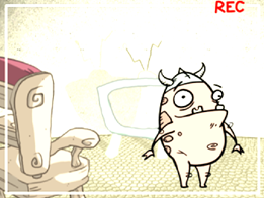
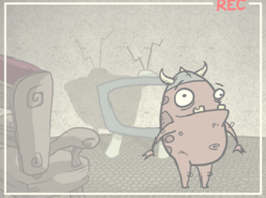
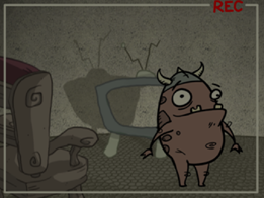
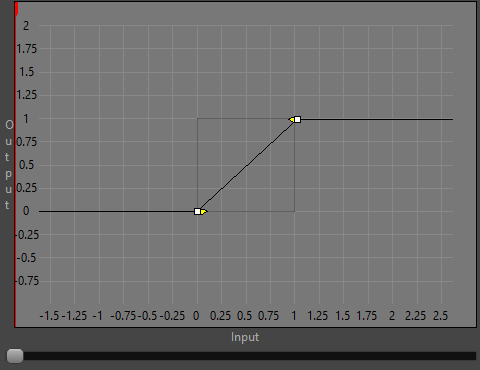
Colour Curves

Modify the brightness and contrast of an image.

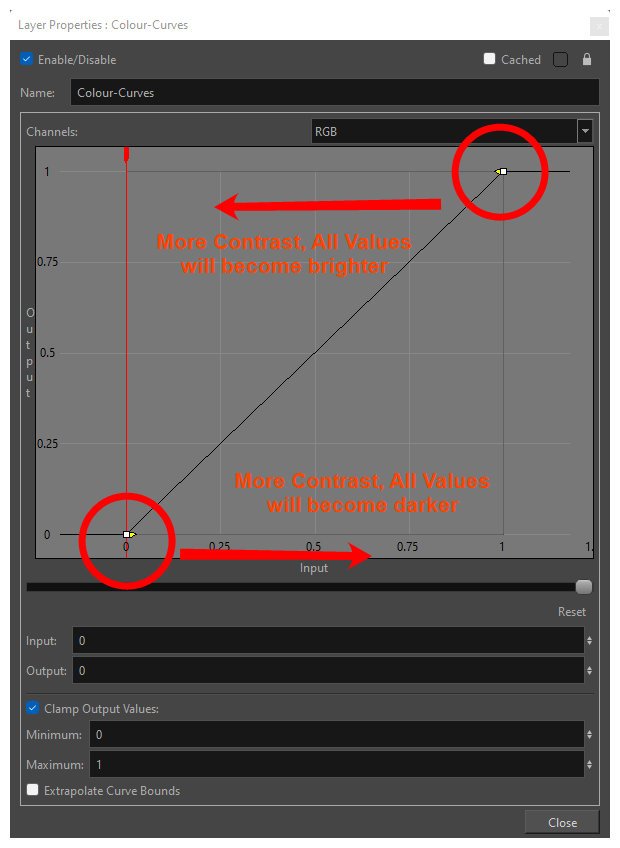
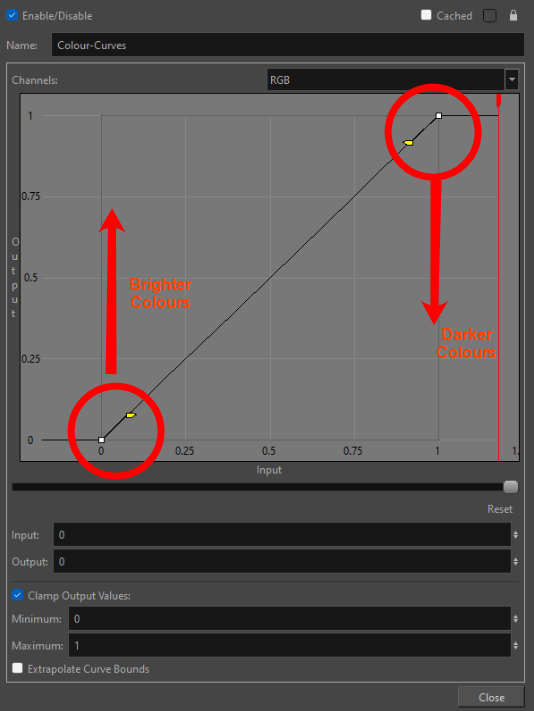
Depending on if you modify the input, the output values or a mix of both, you can darken the shadow of a picture, brighten the highlights.

Channels

Lets you select which channel you want to modify:

  • RGB: Lets you modify every colour channel (red, green and blue) at the same time with a single curve.
  • Red: Lets you modify only the red channel.
  • Green: Lets you modify only the green channel.
  • Blue: Lets you modify only the blue channel.
  • Alpha: Lets you modify only the alpha channel.

Input

Lets you reduce the range of the input colours (by dragging left and right).

Modifying the first control point to a higher input value will create a more contrasted version of the picture. If the value is set near 1, every medium colour will become darker, extremely light colours will stay visible and white will remain white. Once the input is set to 1, only the white colour will remain.

For example, the first control point has an output of 0 and an input of 0.5 instead of 0.

Modifying the last control point to a smaller input value will create a more contrast version of the picture. If the value is set near 0, medium colours will become brighter, extremely dark colours will stay visible and black will remain black. Once the input is set to 0, only the white colour will remain.

For example, the first control point has an output of 1 and an input of 0.5 instead of 1.

Output

Reducing the range of the output colours (dragging up and down) will reduce the levels in the output image but will not clamp the upper and lower pixels (by interpolating the values to a lower overall range). The perceived contrast might drop, but that’s only because the overall levels in the image have been reduced.

Modifying the first control point to a higher output value lets you transform the image to a brighter version of it. The contrast in the picture will mostly remain the same.

For example, the first control point has an output of 0.5 instead of 0 and an input of 0.

Modifying the last control point to a smaller output value lets you transform the image to a darker version of it. The contrast in the picture will mostly remain the same.

For example, the last control point has an output of 0.5 instead  of 1 and an input of 1.

Zoom Slider

Allows you to zoom out to the input values of 2.5 and -1.5, and the output values of 2 and -1. To zoom out, drag the slider to the left.

Clamp Output Values

When checked, the Output will clamp based on the values specified in the following fields:

Maximum - The maximum value of brightness applied to the drawing.

Minimum - The minimum value of brightness applied to the drawing.

The Output area cut off by the maximum and minimum values will appear grayed out, and any control points in this area will be cut out of the image.

Colour Levels

Adjust the levels in an element in order to find a balance between the black and white values in an image.

  • The RGB is for adjusting the levels of all colours.

  • The Red, Green and Blue tabs are for adjusting the levels of a single one of these three colour channels.

  • The Alpha tab is used for adjusting the level of the Alpha channel.

Blending Modes

Choose the blending effect mode you wish to apply to your layer.

  • Normal:Composites the image without any specific blending effect.
  • Erase:Subtracts the overlay pixel's alpha from the underlay pixel, "cutting out" the overlay from the underlay. The overlay pixel's colour information is ignored.
  • Replace:Ignores the underlay pixel completely, outputting the overlay pixel as if nothing existed behind it. This applies to all overlay pixels that have an alpha value of at least 1, so the negative space of the overlay image will not hide the underlay image. If the overlay pixel is not fully opaque, it will be mixed with black.
  • Colour Burn:Darkens each channel in the underlay pixel with the darkness value of the corresponding channel in the overlay pixel, by increasing the contrast of the underlay pixel.
  • Darken:For each channel, uses the value that is the darkest between the underlay pixel and the overlay pixel.
  • Linear Burn:Darkens each channel in the underlay pixel with the darkness value of the corresponding channel in the overlay pixel, by reducing the brightness of the underlay pixel.
  • Multiply:Multiplies the value of each channel in the underlay pixel with the value of each channel in the overlay pixel, treating those values as ratios. Multiplying anything with black will result in black, and multiplying anything with white will leave the colour unchanged.
  • Colour Dodge:Lightens each channel in the underlay pixel with the brightness value of the corresponding channel in the overlay pixel, by decreasing the contrast of the underlay pixel.
  • Lighten:For each channel, uses the value that is the brightest between the underlay pixel and the overlay pixel.
  • Linear Dodge:Lightens each channel in the underlay pixel with the brightness value of the corresponding channel in the overlay pixel, by increasing the brightness of the underlay pixel.
  • Screen:The reverse of multiply. Multiplies the reverse value of each channel in the underlay and overlay pixel, treating those values as ratios. Multiplying anything with white will result in white, and multiplying anything with black will leave the colour unchanged.
  • Vividlight:This colour dodges overlay pixels with a value above 50% onto underlay pixels, and colour burns overlay pixels with a value below 50% onto underlay pixels. The brighter the overlay pixel is, the more intense the colour dodging effect will be. The darker the overlay pixel is, the more intense the colour burning effect will be.
  • Hardlight:This screens overlay pixels with a value above 50% onto underlay pixels, and multiplies overlay pixels with a value below 50% onto underlay pixels. The brighter the overlay pixel is, the more intense the screen effect will be. The darker the overlay pixel is, the more intense the multiplying effect will be. Blending any colour with white or black will result in white or black, and blending a colour with plain grey will leave the colour unchanged.
  • Linearlight:This linear dodges overlay pixels with a value above 50% onto underlay pixels, and linear burns overlay pixels with a value below 50% onto underlay pixels. The brighter the overlay pixel is, the more intense the linear dodging effect will be. The darker the overlay pixel is, the more intense the linear burning effect will be.
  • Overlay:Like hardlight, exept it screens or multiplies the underlay pixel over the overlay pixel, based on the value of the underlay pixel.
  • Pin Light:For each channel, if the overlay pixel's value is above 50%, use the lightest pixel between the underlay and overlay pixels. If the overlay pixel's value is below 50%, use the darkest pixel between the underlay and overlay pixels.
  • Softlight: Each channel of the overlay pixel lightens or darkens the corresponding channel of the underlay pixel on a softer scale. The effect is proportional to how dark or bright the overlay pixel is, but inversely proportional to how dark or bright the underlay pixel is.
  • Difference:For each channel, this takes the darkest pixel among the overlay and underlay pixels, subtract it from the lightest pixel, and outputs the result.
  • Divide:For each channel, this divides the value of the underlay pixel by the value overlay pixel. Both values are treated as ratios, so the resulting colour is brighter. A white overlay pixel will leave the underlay colour unaffected, and a black overlay pixel will always result in white.
  • Exclusion:Adds the overlay and underlay pixel, then subtracts the multiplied value of both pixels twice. This results in an effect similar to Difference, except that while the Difference mode produces consistently high contrast pixels, the contrast of the resulting pixels with the Exclusion mode is proportional to how dark or bright the overlay pixels are.
  • Subtract:For each channel, subtracts the value of the overlay pixel from the value of the underlay pixel. For example, if the underlay pixel is white, and the overlay pixel is dark gray, the resulting pixel will be light gray. Likewise, if the underlay pixel is yellow, and the overlay pixel is red, the resulting pixel will be green, as yellow is a mix of green and red.
  • Colour:Outputs a colour with the hue and saturation of the overlay pixel, and the luminosity of the underlay pixel. The overlay layer can hence be used to "colourize" the underlay layer.
  • Hue:Outputs a colour with the luminosity and saturation of the underlay pixel and the hue of the overlay pixel.
  • Saturation:Outputs a colour with the luminosity and hue of the underlying colour, and the saturation of the source colour.
  • Luminosity:Outputs a colour with the hue and saturation of the underlay pixel and the luminosity of the overlay pixel. This is the reverse of the Colour blending mode.

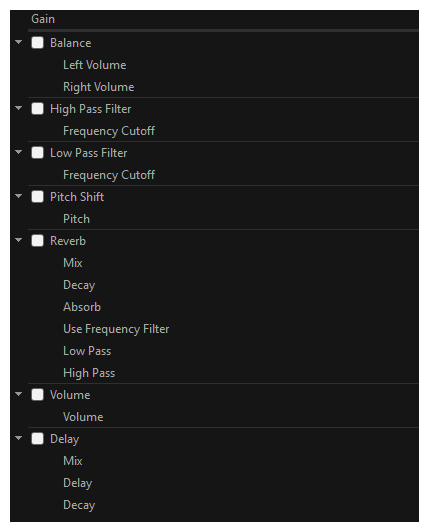
Sound Effects

Effect Description
Gain A default effect in the Effect Stack with a decibel (dB) value of 0. Controls how loud the selected sound clip is before it goes through any processing (other effects are added). The gain value (loudness) can affect the tone of the sound clip as it goes through processing.
Balance Applies volume independently to the left or right channel. Only works on clips with stereo sound. Mono audio clips will duplicate the audio in each channel and then apply the volume.
Left Volume Sets the distribution of volume being applied to the left channel in decibels (dB).
Right Volume Sets the distribution of volume being applied to the right channel in decibels (dB).
High Pass Filter Passes frequencies higher than the Frequency Cutoff and mutes frequencies lower than the Frequency Cutoff. Will cut out all the bass of the audio clip and sounds tinnier.
Frequency Cutoff Set point for passing frequencies below this value, while muting those above this point. Minimum = 0 hz (no frequencies pass), maximum = 22050 Hz (all frequencies pass).
Low Pass Filter Passes frequencies lower than the Frequency Cutoff and mutes frequencies higher than the Frequency Cutoff.
Frequency Cutoff Set point for passing frequencies above this value, while muting those below this point. Minimum = 0 hz (all frequencies pass), maximum = 22050 Hz (no frequencies pass)
Pitch Shift Allows the pitch to be raised or lowered by a defined octave value.
Pitch

Sets the value in octaves by which to shift the pitch, where 0 octaves will result in the original audio. A positive value will increase the pitch, while a negative value will decrease the pitch.

Octaves are on a logarithmic scale. This means that shifting the pitch up by one octave (+1) doubles the sound's frequency, while shifting the pitch down by one octave (-1) puts the sound at half its original frequency.

Reverb Creates a reverberation effect that mimics the way sound bounces within an enclosed space.
Mix

The wet and dry balance percentage of the echo effect, as it is mixed with the original source audio.

A value of 0% will be dry, playing only the source audio.

A value of 50% will blend the source audio and effect 50/50.

A value of 100% will be wet, playing only the effect.

Decay The time decay in seconds (s) for the length that an audio source reverberates within a space. A higher decay time sustains the reverberation for longer and produces more internal reverbs. A lower decay time results in a sharper reverberation.
Absorb

The amount as a percentage (%) that the reverberating audio is absorbed on each sample pass

A lower absorption percentage allows the audio to endure for longer. A high absorption value muffles the reverberation faster. A 100% absorb value will result in no reverberation.

Use Frequency Filter Determines whether the Reverb effect stifles frequencies outside a certain range. When this option is checked, the High Pass and Low Pass filters affect the sound clip's audio frequencies by their selected values. Without this option checked, frequencies will reverberate consistently.
Low Pass When the Use Frequency Filter option is enabled, this value defines what frequencies can pass on each reverberation. Frequencies below this value will be audible, but frequencies above it will be muted. This parameter can be adjusted to create hollower sounding rooms and larger spaces.
High Pass When the Use Frequency Filter option is enabled, this value defines what frequencies can pass on each reverberation. Frequencies above this value will be audible, but frequencies below it will be muted. This parameter can be adjusted to create bouncier sounding rooms with harder walls.
Volume Controls how loud the sound clip is after it has been processed.
Volume Increase the decibel (dB) value to a number greater than 0 to increase the loudness of the selected sound clip or to a value less than 0 to decrease loudness, where 0 is the starting value. Unlike gain, the volume's loudness will not affect the tone of the sound. The Volume range is -96 dB to +6 dB.
Delay  
Mix The percentage volume of the echo effect, as it is mixed with the original source audio. A value of 100% will only play the effect, whereas a value of 0% will only play the source audio.
Delay Defines the delay between the original source audio and the initial echo reverberation, as well as between each subsequent reverberation. This value is in milliseconds (ms).
Decay

Defines the point at which the echoing source can no longer be heard. This value is in seconds (s). If there is more than one echo, each subsequent echo will get quieter and quieter over the length of the decay.

Given a delay of 500 ms and a decay of 2 seconds (2000 ms), the listener will hear a total of 4 individual echos (2000 ms decay / 500 ms delay).