Clipping Mask
A clipping mask is a special type of mask that enables you to overlay an image within the boundary of a drawing layer. When a Clipping Mask is applied, the bottom drawing layer will become a matte layer clipping all the selected images above.
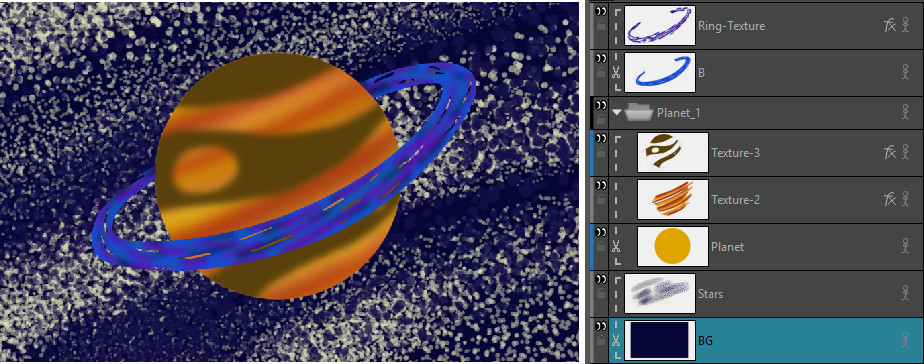
A clipping mask is ideal for applying decals, textures, tones and effects to an image. Any element added to a clipped layer can be applied liberally and loosely as any part of the image that exceeds the boundary of the matte layer will be invisible and excluded from the render. This mask gives you the ability to reveal only what you want visible and hide what you don’t.
 How to Enable the Clipping Mask
-
Select Layer(s).
-
Do one of the following:
-
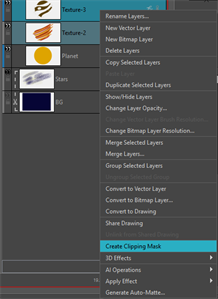
Right Click > Create Clipping Mask.
-
Select Layer from the Top Menu > Create Clipping Mask.
NOTE If you select layers that are already a part of a clipping mask; when you select the Layer, you will see the option Remove from Clipping mask.
-
When the clipping mask is enabled, a dashed border will appear around all the affected layers. This will indicate that the clipping mask has been engaged and display all the drawing layers within the clipping mask hierarchy. The  matte layer will be indicated by a scissor icon on its drawing layer.

The clipping mask hierarchy establishes which of the clipped images will be rendered more forward and which will appear in the background. The higher an image appears in the hierarchy, the more forward it will appear. The behaviour is similar to that of the drawing layers.
Using the clipping mask, you can create templates. You can create hierarchies in the clipping mask’s drawing layers to isolate a section of an image. If you want to repeat the template you created, you can copy and paste them from one Panel to another.
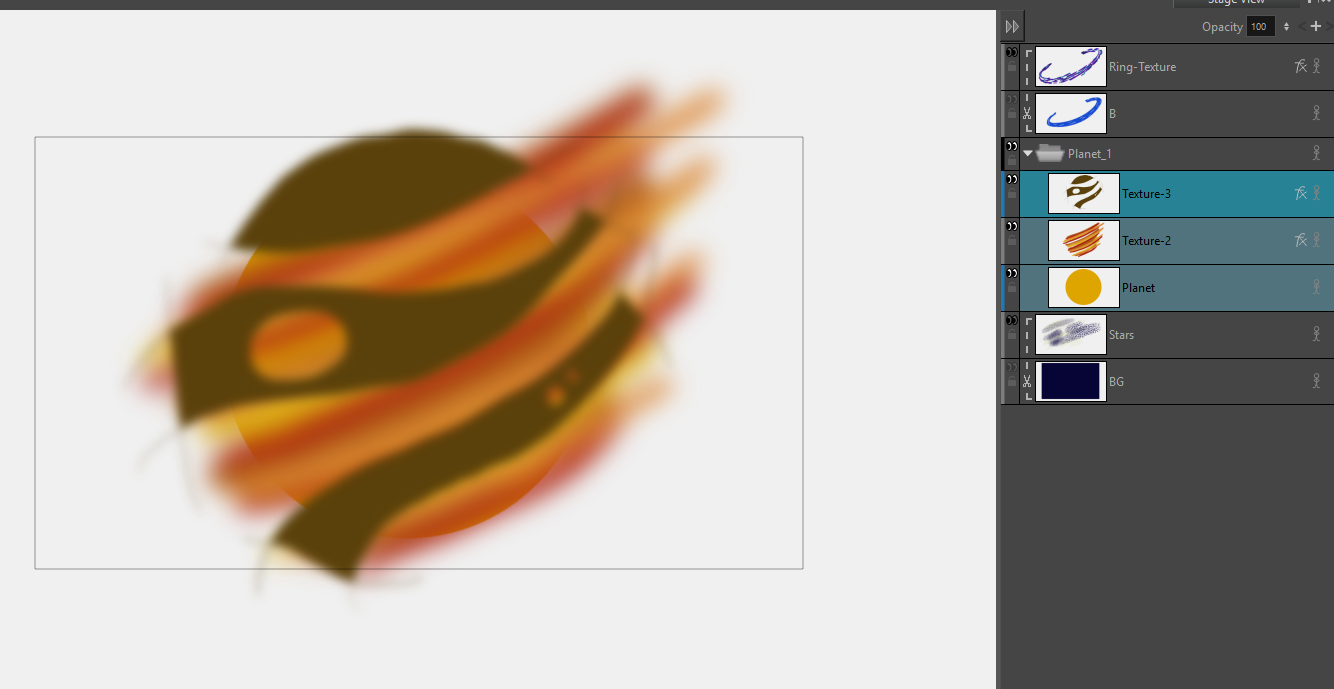
You can create groups in order to contain your clipping mask hierarchy. You can group existing clipping mask layers or create a clipping mask within a group. You can drag and drop drawing layers in and out of your grouped clipped mask. Additionally, you can use the group itself as the matte layer. When a group is used as the matte layer, all the contents of the group will act as a flat image in order to clip all the drawing layers above.
For more information about groups, see Grouping Layers.
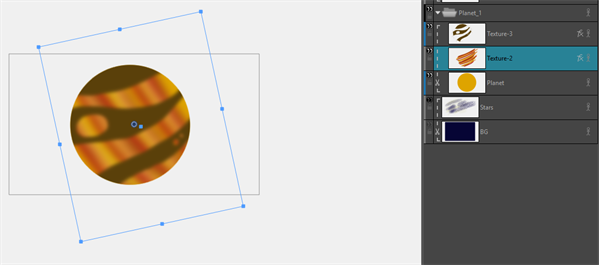
While the clipping mask is enabled, you will continue to have the ability to edit and work on the images affected by the clipping mask. Because the clipping mask is non destructive, the portion of your image that is outside of the matte layer will not be deleted. This means that any portion of your image beyond the boundary of the matte layer will still exist and can be translated, transformed and rearranged within the clipping layer.
However, any changes made to the matte layer itself will affect all the drawing layers that are clipped above. If an effect is applied or the opacity is changed, all the drawing layers in the clipping mask hierarchy will be affected.
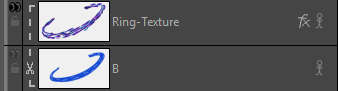
The eye icons will appear black rather than grey to indicate that the clipping mask is deactivated rather than the individual layer.