Timing Options
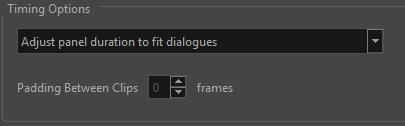
The Timing Options at the bottom of the Adjust Dialogue Intonation with AI dialog will enable you lengthen or shorten panels as well as dialogue processed with AI. In order to affect the timing of your audio, you can select a timing mode from the Timing Options dropdown menu and/or apply padding to your audio. You can set the parameters so that the dialogue will respect the timing of the panel or that the panel is accommodating the length of the dialogue.
 How to adjust the timing of your dialogue
-
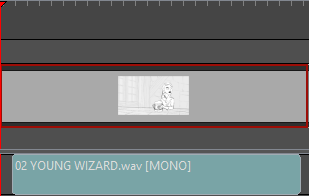
Select your audio clip from the Dialogue List.
-
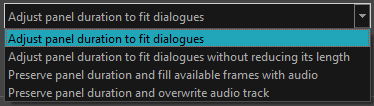
Select a Timing Mode.
-
Set the number of frames of padding you want to apply to your audio.

-
Do one of the following:
-
Click OK.
-
Click Apply.
-
You can select from the following timing modes:
-
Adjust Panel Duration to Fit Dialogue
-
Adjust Panel Duration to fit Dialogue without Reducing its Length
-
Preserve Panel Duration and Fill Available Frames with Audio
-
Preserve Panel Duration and Overwrite Audio Track
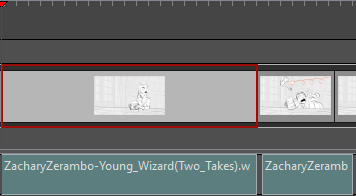
The Adjust Panel Duration to Fit Dialogue will retiming the length of the panel to match the length of the audio clip in the Adjust Dialogue Intonation with AI dialog.
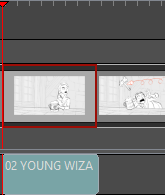
The Adjust Panel Duration to fit Dialogue without Reducing its Length will lengthen a panel to match the length of the audio in the Adjust Dialogue Intonation with AI dialog. If the dialogue is shorter than the length of the panel, the panel will remain unaffected. However, if the audio extends beyond the end of the panel, the timing of the panel will increase to match the length of the audio clip.
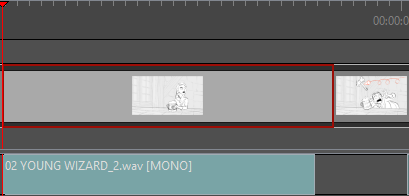
The Preserve Panel Duration and Fill Available Frames with Audio will maintain the length of the panel while allowing the audio clip to extend beyond the length of the panel. The audio track needs to have available frames that the audio can occupy. If there is existing audio on the audio track, the dialogue will be clipped preserving the pre-existing audio in your Timeline.
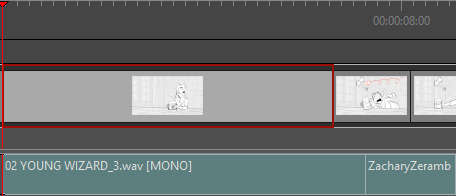
The Preserve Panel Duration and Overwrite Audio Track will maintain the length of the panel while allowing the audio clip to extend beyond the length of the panel. The main difference between Preserve Panel Duration and Fill Available Frames with Audio and Preserve Panel Duration and Overwrite Audio Track is that if an audio clip already exists on the same audio track, the audio selected in the Adjust Dialogue Intonation with AI will replace the pre-existing audio.
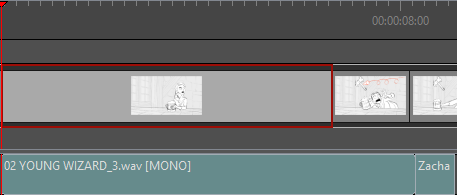
In addition to selecting a timing mode, you can also apply padding to the dialogue in the Adjust Dialogue Intonation with AI dialog. The Add Padding number box will apply a specific number of frames between audio clips and the ends of a panel and/or other audio clips.