Interface
An asset has many properties and attributes. By default, the Asset page only displays some information about each asset in the asset list.
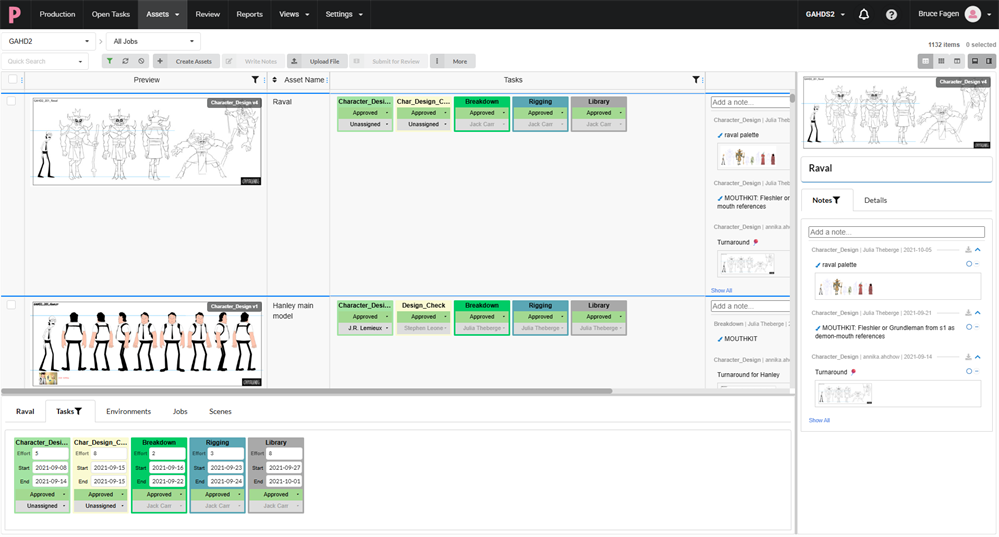
To display more information on about an asset, do the following:
-
Add a column containing the information to the asset list.
-
Select a specific asset, then open either the side panel or the bottom panel to view more information about it.
Columns in the asset list can display the following information:
- Selector
- Preview
- Tasks
- Tags
- Asset Name
- Description
- Type
- Category
- Notes
- Priority
- Completion
- Workflow Code
- Asset Code
- Harmony Status
The side panel displays the following information:
- Preview thumbnail
- Name
- Description
- Priority
- Asset Code
- Notes
- Harmony Settings: environment/job/scene/harmony version
The bottom panel displays the following information:
- Tasks
- Environments
- Jobs
- Scenes
The following table lists each type of information about an asset, and which method will display it:
|
Information |
Description |
Asset List |
Side Panel |
Bottom Panel |
|
Preview |
The preview thumbnail for the asset. |
Preview column |
Side panel |
N/A |
|
Tasks |
A step in a workflow. |
Tasks column |
N/A |
Tasks tab |
|
Asset Name |
The display name of the asset. |
Name column |
Details tab |
N/A |
|
Description |
The description of the asset. |
Description column |
Details tab |
N/A |
|
Asset Type |
Identify assets and categorize them based on purpose. |
Asset type column |
N/A |
N/A |
|
Asset Category |
Categorizes the file types. |
Category column |
N/A |
N/A |
|
Notes |
A section where pertinent information can be relayed regarding the selected asset to other collaborators on your project. You can input or review comments, suggestions, request clarification (corrections or retakes) or hyperlinks to references and other relevant external materials. |
Notes column |
Notes tab |
N/A |
|
Priority |
A rank indicating the importance of a given asset. |
Priority column |
N/A |
N/A |
|
Open Harmony |
Launch Harmony scene containing the selected asset. NOTE In order to launch the Harmony scene, Producer must be configured to be synchronized with Harmony.
|
Open Harmony column |
N/A |
N/A |
|
Completion |
A progress wheel tracking the percentage of the asset that has been completed. |
Completion column |
N/A |
N/A |
|
Workflow Code |
The type of workflow being used for the asset. |
Workflow Code column |
N/A |
N/A |
|
Asset Code |
|
Asset Code column |
N/A |
N/A |
|
Scene Asset Code |
If a scene has been converted to an asset, this is the code of the asset it is linked to. |
Scene Asset Code column |
Side panel |
N/A |