Optimize Backup Files
The Optimize Backup Files operation will remove unused backup files from the Elements folder. This will lighten your scene and allow Harmony to source the necessary elements without needing to sort through unused data files.
 How to Optimize Backup Files
-
Select File > Optimize.
-
Select Optimize backup Files.
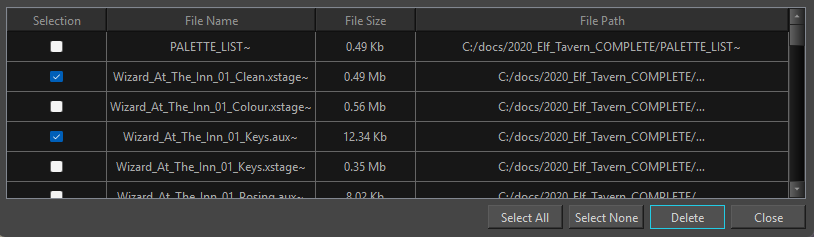
The Optimize Backup Files dialog will open.
-
Do one of the following:
-
Select files manually.
-
Click Select All
-
-
Click Delete.
-
Click Close.
NOTE Your scene will only apply the Optimize Drawing operation after saving your scene.
The Optimize Backup Files dialog will only list files that are unused in your Harmony project. The backup files that appear in the Optimize Backup Files dialog will be listed by file name, file size and the file path.