Drawing Layer Substitution View
The Drawing Layer Substitution view displays all the layers contained in an element from the Drawing Substitution view. Each layer will appear as a separate thumbnail in the Drawing Layer Substitution view. From this view you will be able to swap both the drawing and/or its layers on the timeline. All you have to do is select the frame where you want to swap drawings, click on the layer thumbnail of the drawing you want to expose
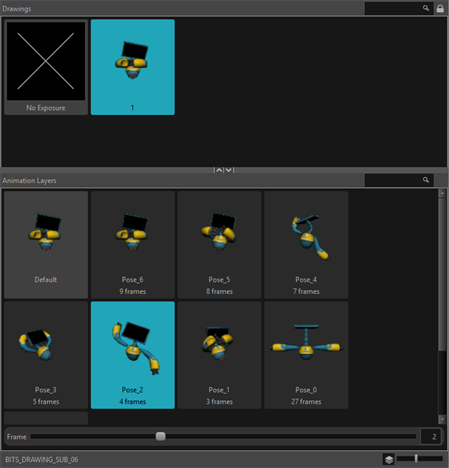
The Drawing Layer Substitution view will show the layers of any elements that contain different layers. This view is particularly useful for displaying the animation layers of
If your 3D model contains animation, it can be applied to the Timeline directly from the Drawing Layer Substitution view. You can use the Create Subnode Override function in order to generate and transfer your animated keyframes to a Subnode Override node. Once transferred, your 3D animation keyframes will appear on the Timeline.
 How to use Create Subnode Override
-
Select your drawing from the Drawing Substitution view.
-
Right-click your animated 3D layer.

-
Select Create Subnode Override.
A Subnode Override node will appear in the Node view.
Your 3D animation keyframes will be generated on the Timeline.
For more information about the Subnode Override node, see Subnode Override Node.
If your 3D model already contains a Subnode Override node in the Node view, you can drag and drop your 3D animation layer directly into the Timeline from the Drawing Layer Substitution view. You can drop the animation keyframes directly onto the Subnode Override layer.

How to swap drawings using the Drawing Layer Substitutions view
-
Add the Drawing Substitutions view to your workspace by doing one of the following:
-
In the top-right corner of any existing view, click on the Add View button and select Drawing Substitutions.
-
In the top menu, select Windows > Drawing Substitutions.
-
-
Select the Show drawing layers in separate view to open the Drawing Layer Substitution view.
-
Select your drawing from the Drawing Substitution view.
-
In the Timeline or Xsheet view, select the frame at which you want to swap drawings.
TIP You can select a range of frames to substitute drawings in several frames at the same time, see About Swapping Multiple Drawings. -
In the Drawing Layer Substitutions view, select one of the layers contained in your drawing.
-
Click and drag the slider at the bottom of the view.
NOTE The slider is only available for animated 3D layers.
The drawing exposed in the current frame is swapped with the drawing layer you select from the Drawing Layer Substitution view.