Expand Image
The Expand Image operation allows you to enlarge your bitmap images without sacrificing image resolution. Any images that need to be scaled up will be processed with AI to generate an extension to the existing image.
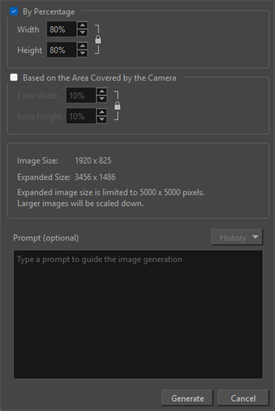
This AI operation will allow you to enlarge your images to fit the dimensions of larger scenes. The AI operation can also be used to expand an image to fit the boundary of a static or dynamic camera. The need to redraw backgrounds or import larger images if the scales do not match will be redundant.
Additionally, you can opt to use the Prompt textbox in order to generate content in the expanded regions of your image. The Prompt textbox is available when expanding your image both by Percentage and Based on the Area Covered by the Camera. Whatever is written into the Prompt textbox will be additive. The AI processor will interpret what is written when generating new content for the expanded section of your image. For this reason, it is important to be specific when writing text into the Prompt textbox so that the AI can more accurately interpret your vision.
Any text written into the Prompt textbox will be saved in the History dropdown list. When utilizing AI prompts on other images, you can access the history to use the same prompts or other saved prompts that have been previously input.
You can expand your image the following ways:
The way that an image is imported into Harmony will affect how a bitmap image is expanded. When expanding a bitmap image imported using the Keep As Original Bitmap option, the attributes of the image will be affected. The X and Y position as well as the scale will be altered in order to facilitate the expansion.
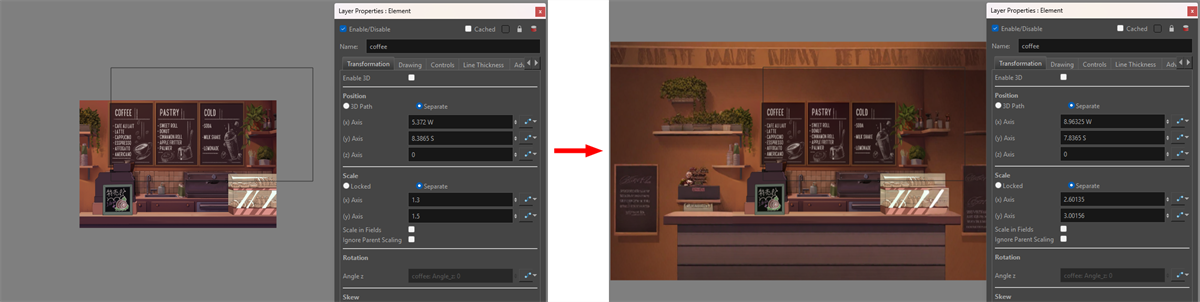
If a keyframe value for the position or scale of the image is manipulated prior to the Expand Image operation, the image will expand within the boundary of those set keyframe values. The AI will not override the keyframe functions of the image when you employ the Expand Image operation.
Conversely, When importing an image using the Import As Toon Boom Bitmap Drawing or Convert to Toon Boom Vector Drawing, the key frame values of the image will not affect the Expand Image operation. This gives you more freedom to reposition and rescale images. However, it is still recommended to apply your animations using Pegs.
