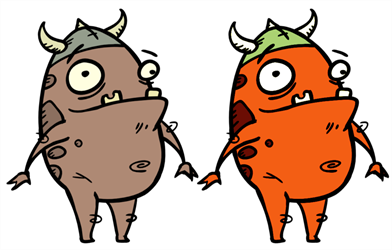
The Brightness and Contrast effect allows you to modify the brilliance or dullness of an image or to create a greater difference between the lights and darks of an image by increasing their respective intensities. This effect can be used when an image appears too flat. Increasing the brightness or contrast can give a drawing a more attractive and 3D quality. This can be useful if you want to push your background to the rear by making it look dull and flat and pulling your foreground elements to the front by giving them a higher contrast.
Connection
The Brightness-Contrast effect layer must be connected as a child of the drawing layer or group which you want it to affect.

Layer Properties
| Parameter | Description |
|---|---|
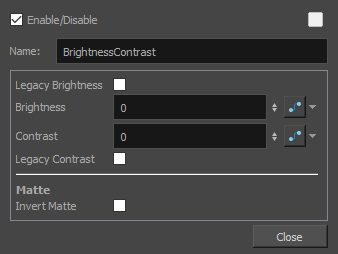
| Name | The name of the node as it appears in the Node View and the Timeline view. Each node must have a name that is unique to its containing group. |
| Legacy Brightness |
If you created this effect in an older version of Harmony, this option is enabled by default to prevent enhancements done to the effect in more recent versions of Harmony from affecting the rendered image. |
| Brightness | A value less than 0 will darken the image; a value greater than 0 will brighten it. Attach a Bezier or Ease function to change the brightness over time. |
| Contrast | A value less than 0 will reduce contrast; a value greater than 0 will increase contrast. Attach a Bezier or Ease function to change the contrast over time. |
| Legacy Contrast |
If you created this effect in an older version of Harmony, this option is enabled by default to prevent enhancements done to the effect in more recent versions of Harmony from affecting the rendered image. |
| Matte | |
| Invert Matte |
Inverts the matte used to generate the effect. By default, the effect is applied to the opaque areas of the matte drawing. When this option is enabled, the effect is applied to the transparent areas of the matte instead. |