Optimize Palettes
The Optimize Palettes function will remove any unused palettes or colours in the scene. The palettes that are removed will be eliminated from the palette list but not be deleted off the disk unless specified to do so.
On the bottom of the Optimize Palettes dialog are a variety of actions which can be applied to the palettes and colours listed. These actions enable you to optimize your palettes in the manner that suits the needs of your scene best.
| Parameter | Description |
| Select All | Select all the palettes or colours. |
| Select None | Deselect all the palettes or colours. |
| Remove | Remove the selected palettes or colours from the palette list. |
| Delete |
Remove the selected palettes from the palette list and delete them off the disk. NOTE This option is only available in the Palettes tab.
|
| Merge |
Combine at least two unused palettes into a new palette on a pre-existing palette list. TIP The newly merged palette can be combined with an existing palette.
NOTE This option is only available in the Palettes tab.
|
| Check Other Versions |
When enabled, will prevent you from removing palettes from your project files if they are used in other versions within that project. NOTE
By default Check Other Versions is enabled.
NOTE If the palette is referenced in an older scene and the Check Other Versions option is enabled, the palette will be marked as “Used” in the Optimize Palettes dialog.
|
| Close | Close the Optimize Palettes dialog. |
Palettes
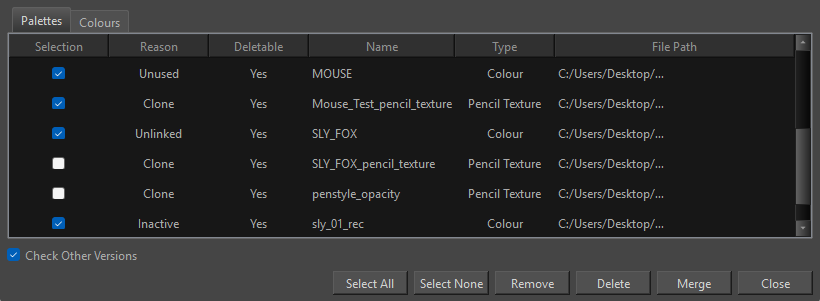
The Palette tab in the Optimize Palettes dialog will only display the colour palettes that remain unused. If a colour in the palette is not being used, the palette will still be deemed necessary by Harmony.
| Section | Description |
| Selection |
A checkbox to indicate that the chosen palette has been selected. A selection is indicated with a check. |
| Reason |
Indicates the reason that the palettes are unnecessary in your project. The following are reasons that can appear:
|
| Deletable |
Whether or not a palette can be removed from the disk in addition to being removed from the palette list. A palette will not be deletable if it is stored in the Job or Environment files or located in another scene. |
| Name | The name of the palette in the palette list. |
| Type |
Displays what palette type is selected.
|
| File Path | The location of the palette on the disk. |
Merge Dialog
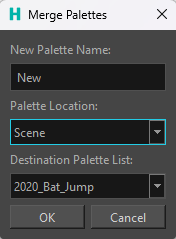
When the Merge action is selected, a Merge dialog will appear.
| Section | Description |
| New Palette Name | The name that will be assigned to the new palette after the merge is performed. |
| Palette Location |
How the merged palette will appear.
|
| Destination Palette List | The palette list on which the newly merged palette will be registered. |
| OK | Confirm the merge operation. |
| Cancel | Abort the merge operation. |
Colours
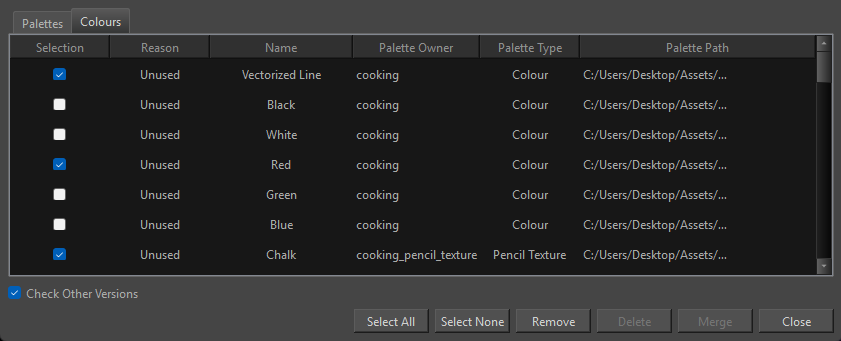
The Colours tab in the Optimize Palettes dialog will only display unused colours contained in your used palettes.
| Section | Description |
| Selection |
A checkbox to indicate that the chosen colour has been selected. A selection is indicated with a check. |
| Reason |
Indicates the reason that the colours are unnecessary in your project. The following are reasons that can appear:
The name of the colour as it appears in the palette. |
| Name | The name of the colour as it appears in the palette. |
| Palette Owner | The palette that contains the colour or texture. |
| Palette Type |
Displays what sort of palette contains the selected colour.
|
| Palette Path | The location of the palette on the disk. |