Expand Image Dialog
The Expand Image dialog will allow you to enlarge your images to fit the dimensions of larger scenes. The AI operation can also be used to expand an image to fit the boundary of a static or dynamic camera.
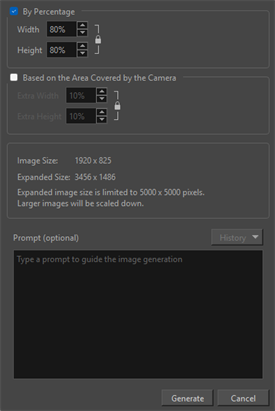
| Property | Description |
|---|---|
| Percentage | Expand your image based on a percentage value. |
| Width | The width percentage for the expansion of the image. |
| Height | The height percentage for the expansion of the image. |
| Lock/Unlock | Link and unlink the width and height values. |
| Based on the Area Covered by the Camera |
Expand your image to fit within the camera’s view and apply padding to ensure your image is action safe. TIP You can expand your image to fit both a static camera or a camera move.
|
| Extra Width | The width percentage for the padding applied to your image. |
| Extra Height | The height percentage for the padding applied to your image. |
| Lock/Unlock | Link and unlink the width and height values. |
| Image Size | The resolution of your original image. |
| Expanded Size | The total resolution of your expanded image. |
| Prompt | A textbox where you can input written text for the AI to process and apply to your image. |
| History | A list of prompts used in the scene. |
| Generate |
Confirm settings to expand your image. IMPORTANT The new
|
| Cancel | Cancel expansion operation. |
IMPORTANT The Expand Image operation has a limit of 5000 x 5000 pixels. Any images that are larger will have the original scale reduced in order to fit within the pixel limit of the Expand Image operation.