Art Layer Manager
The Art Layer Manager is a centralized location where you can move, swap, consolidate, clone or clear art layers in your scene. All art layers are contained within a single drawing, however; the Art Layer Manager allows you to make changes to the hierarchy of the specific art layers within your drawings.
For more information about how to enable the Overlay and Underlay art layers, see Enabling Overlay and Underlay Art Layers.
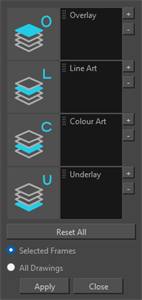
To access the Art Layer Manager, do the following:
-
Select Drawing from the Top Menu > Select Art Layer Manager.
-
In the Camera window, select the Menu > Drawing > Select Art Layer Manager.
-
In the Drawing window, select the Menu > Drawing > Select Art Layer Manager.
 Art Layer Manager to your Toolbar.
For more information about adding to your Toolbar, see Customizing Toolbars.
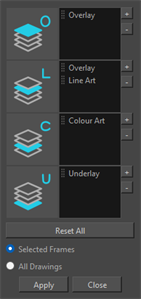
Each art layer will contain an art layer list. By default each art layer list will only contain the art layer which is associated with it. However, you can move art layers between the art layer lists in order to combine or clone art layers within an art layer’s list. Rearranging your art layers will affect the overall hierarchy of your artwork and affect the layering and final render of your image.
Using the Art Layer Manager you can do the following operations:
Once restructured to your liking, the Art Layer Manager will bake your strokes, images and textures to their art layer on the art layer list.
Once baked, the elements on each art layer will be independent of one another in the art layer list. This means that you can modify the artwork of a cloned art layer independently without fear of affecting the original or the other cloned art layers.
You can opt to bake your art layers to a selected frame on the Timeline by selecting the Selected Frames option or apply the change to all the drawings in the Timeline by selecting all Drawings.
Combining Art Layers
Using the Art Layer Manager you can combine art layers together. You can reorder the hierarchy of your artwork by dragging and dropping art layers from one art layer list into another. When combined, the artwork from the original art layer will be transferred to the art layer of the art layer list it was dropped into. The contents of that art layer will no longer appear in the original art layer which it was moved from.
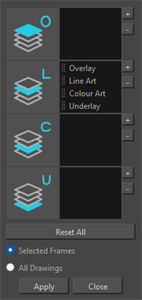
Once combined, the artworks on the combined art layer list will all be displayed on a single art layer. The hierarchy within the art layer will determine which art work will appear more forward or more back. The art layer on top of the art layer list will appear most forward on that art layer. Conversely the art layer on the bottom of the art layer list will appear furthest back.
Clone Art Layer
Each art layer can be cloned onto the three other art layer lists within the Art Layer Manager. By cloning an art layer within the Art Layer Manager, you will create a clone of the image on the art layer being duplicated. That image will then exist on multiple art layers.
 How to Clone an Art Layer
-
Open the Art Layer Manager.
-
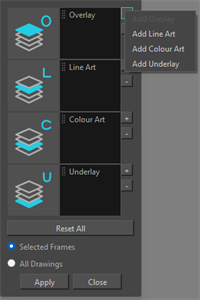
Click the
 Clone Art Layer button.
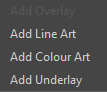
An art layer dropdown menu will appear.
-
Select your desired art layer to clone.
That art layer will be added to the art layer list.
NOTE If the art layer list already contains that art layer, it will be greyed out and impossible to clone onto that art layer list. -
Click Apply.
Cloning an art layer is convenient when you need to duplicate a drawing. Once you apply the change, your image will be baked on more than one art layer. Once baked, you can alter the drawing on either art layer without affecting the other.
Tip: Rather than using a copy/paste operation to duplicate your image, cloning an art layer ensures a perfect clone without risk of resizing or shifting.
Delete Art Layer
If you want to remove an art layer without resetting your entire art layer hierarchy, you can select Delete Art Layers from the art layer list. When you remove the art layer, the artwork associated with that art layer will disappear. It will not be deleted. If the art layer exists in another art layer list, it will remain visible in the render on that other art layer.
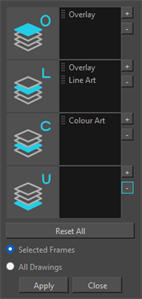
If that art layer has been removed from all art layer lists, you can recover the art work by re-adding the art layer to any art layer list.
How to Delete an Art Layer
-
Open the Art Layer Manager.
-
Select an art layer from the art layer list.
-
Click
 Delete Art Layer.
The selected art layer will disappear from that art layer list.
-
Click Apply.