Duplicate Drawings
The Duplicate Drawings tab in the Optimize Drawings dialog will only display drawings that have been duplicated and share the same file path in the Elements folder.
The Duplicate Drawings tab in the Optimize Drawings dialog will list the source element, duplicated drawings and the affected layer. The source element is the owner of the duplicated drawings. The active layer will list all the layers that the source element appears on. The number that appears in the duplicate drawing column will show the number of drawings that are repeated.
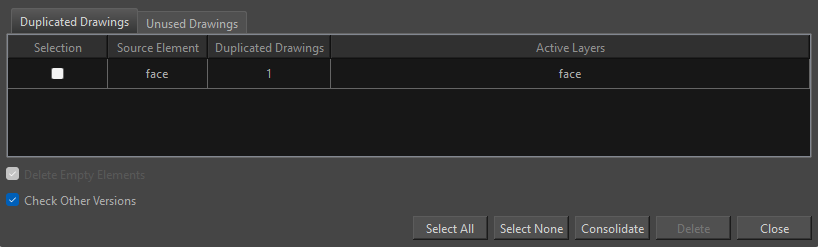
For example, if you had one drawing cloned three times or if you had one drawing cloned once and another cloned twice, in both cases the number of duplicates that would appear in the column is three.
The selection column will indicate whether or not the element has been selected in order to apply an action.
Duplicate Drawing Actions
On the bottom of the Optimize Drawings dialog are a variety of actions which can be applied to the duplicated drawings listed.
You can select from the following actions:
-
Select All: Select all the cloned drawings listed.
-
Select None: Deselect all cloned drawings that have been selected.
-
Check Other Versions: When enabled, will prevent drawings that are used in other versions of the project from being modified or removed.
NOTE The Check Other Versions option is enabled by default. -
Consolidate: Merge all the duplicated drawings files of the same element into a single drawing file.
TIP When consolidated, the drawings will remain where they are on the timeline, but the name of the exposures will be the name of the merged drawings. -
Close: Close the Optimize Drawings dialog.