The Colour Levels node is an effect node that enables you to adjust the light, dark and midtone values of the RGBA channels of the input image. By adjusting the black (dark) and white (light) points in the Colour Levels node, you control how input brightness values are remapped. This lets you increase contrast, recover details in shadows or highlights, and rebalance the overall tonal range of your scene.
When you open the Colour Levels Node parameters, you will have control over the input, output, gamma and the colours affected.
The input attributes convert the image’s values to fit within the input range. This will cause the pixels in the image to appear lighter or darker depending on the values in the input attributes of the Colour Levels node.
The input attributes of the Colour Levels node are used to define the input range that the source image is mapped into:
-
Input Black: The bottom of the value range that is used to map the input image into the effect’s working range.
-
Input White: The top of the value range that is used to map the input image into the effect’s working range.
The output attributes convert the input range of pixel values into the final output range of pixel values. The output attributes of the Colour Levels nodes are used to define the output range that the working image is mapped into:
-
Output Black: The bottom of the value range that is used to map the working image into the effect’s final rendered result.
-
Output White: The top of the value range that is used to map the working image into the effect’s final rendered result.
The gamma value enables you to edit the midtones in your image. The gamma will affect the image’s brightness curve and will lighten or darken your image’s midtones without affecting the white and black values in your image.
Connection
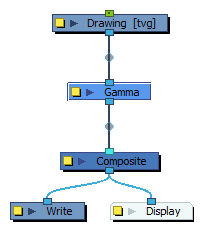
To apply the Colour Levels node to your drawing, connect the effect node below your element node. The effect node will take the input image from its top port, apply the colour levels parameters and output the modified image from the bottom port.
Properties
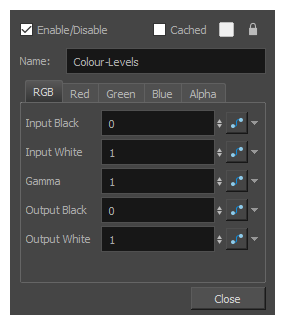
To access the Colour Levels node properties, click the yellow square on the effect node. The Colour Levels dialog will open.
From the dialog, you can apply values to the RGBA or isolated Red, Green, Blue and Alpha channels. You can enter different values in each section to create a custom output by isolating the values in each colour channel.
Within each channel, you can affect the following parameters:
-
Inputs.
-
Gamma.
-
Outputs
| Parameter | Description |
|---|---|
| Name | The name of the node as it appears in the Node View and the Timeline view. Each node must have a name that is unique to its containing group. |
| Input |
|
| Gamma |
The gamma correction to apply to the colours after the input levels are applied and before the output levels are applied. Gamma correction is a curvilinear function applied to the colour values. It is used to modulate the difference in intensity between colour values. In other words, it affects how much differences between low, medium and high colour values translate to actual variations of intensity between colours. For example:
|
| Output |
|