Increase Image Texture Resolution
The Increase Image Texture Resolution operation will increase the resolution of your textures on vector layers. This operation works exclusively on vector layers who's image has been imported as a texture. The Increase Image Texture Resolution dialog will give you the option to scale your image texture resolution up by a scale factor of 2 or 4.
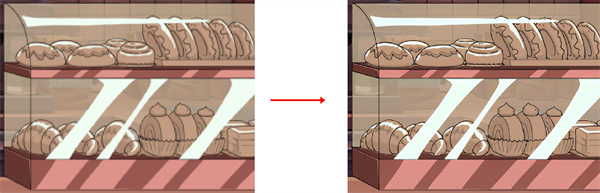
For more information about importing a bitmap image as a vector drawing, see Vectorizing Parameters Dialog Box.
For more information on converting an image on a vector layer into a texture, see Increase Image Resolution.
 How to Use Increase Image Texture Resolution
-
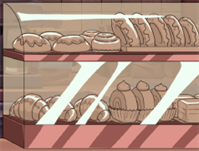
Select your image.
-
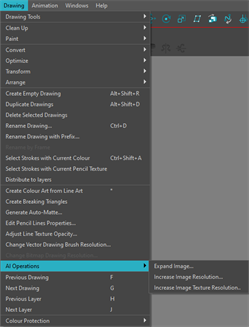
Select Drawing from the top of the interface.
-
Open the AI Operations dropdown menu.
-
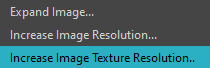
Select Increase Image Texture Resolution.
-
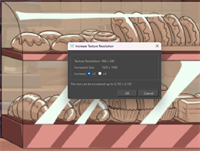
The Increase Image Texture Resolution dialog will open.
Select the increase multiplier x2 or x4.
-
Click OK.
A progress bar will appear.
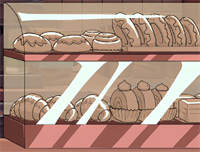
When you click OK, your image will be processed with AI and generate your image with the higher resolution applied.
In the Increase Image Texture Resolution dialog, the resolution of your current image texture and the resolution of your processed image texture will be displayed.
You can increase the image texture resolution on your image more than once. However, there is a limit. The Increase Image Texture Resolution operation will only increase the resolution of your image texture up to the limit of 8,192 x 8,192 pixels.