By Percentage
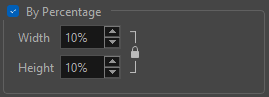
Using the Expand Image operation, you can opt to scale up the image using a percentage value. When the percentage option is checked, the AI will expand your image based on a percentage of the total resolution of the selected image. The amount of pixels that the AI will generate will be evenly distributed along the X and Y-axes.
 How to Expand By Percentage
-
Select your image.
-
Select from the top of the interface.
-
Open the AI Operations dropdown menu.
-
Select Expand Image.
The Expand Image dialog will appear.
-
Select the Percentage checkbox.
-
Input the percentage values in the X and Y-axes.
-
Click OK.
The Expand Image window will appear.
-
Review the processed expanded image.
-
Click OK.
Once you click OK, the AI will generate pixels to enlarge your image based on the values input in the X and Y number boxes.
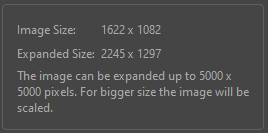
If your image is 100 px and you set the value to 100%, the AI will generate 100 px to add onto your original image. This will double the size of your image to 200 px total. If you set the value to 50%, the AI will generate 50 px to add to your original image. This would enlarge your image to a total scale of 150 px.