Based on Area Covered by the Camera
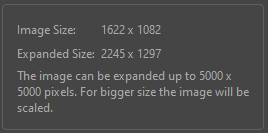
Using the Expand Image operation, you can opt to scale up the image using the Based on the Area Covered by the Camera option. This option will expand your image to fit within the camera’s view and apply padding to ensure your image is action safe.
When expanding using the Based on the Area Covered by the Camera, you can apply the AI operation to both a static camera or to the path of a camera move. If the camera is static, the AI will generate enough pixels to fit the boundary of the camera and apply padding around the border of the camera based on the X and Y-axes values that were input.
If there is a camera move, then the AI will generate pixels along the motion path of the camera. The image won’t move with the camera, rather it will be scaled up large enough to ensure that there are pixels within the camera’s field of vision at all times. The padding will be applied to the overall scale of the expanded image based on the beginning and end position of the camera move.
For more information about camera moves, see .
 How to Expand Based on the Area Covered by the Camera Move
-
Set your Camera.
-
Select your image.
-
Select from the top of the interface.
-
Open the AI Operations dropdown menu.
-
Select Expand Image.
The Expand Image dialog will appear.
-
Select the Based on the Area Covered by the Camera Move checkbox.
-
Input the percentage value of X and Y-axes for padding.
-
Click OK.
The Expand Image window will appear.
-
Review the processed expanded image.
-
Click OK.
Once you click OK, the image will expand to fit all frames covered by the camera. The percentage value of pixels will be applied to the padding of your image’s border. The padding will be applied to the portion of your image that stretches beyond the boundary of the camera.