The Properties dialog box lets you change the property settings in your project.
 How to access the
 - Do one of the following:
| ‣ | Select Storyboard > Properties. |
| ‣ | Press Alt + Return. |
Project Resolution Tab
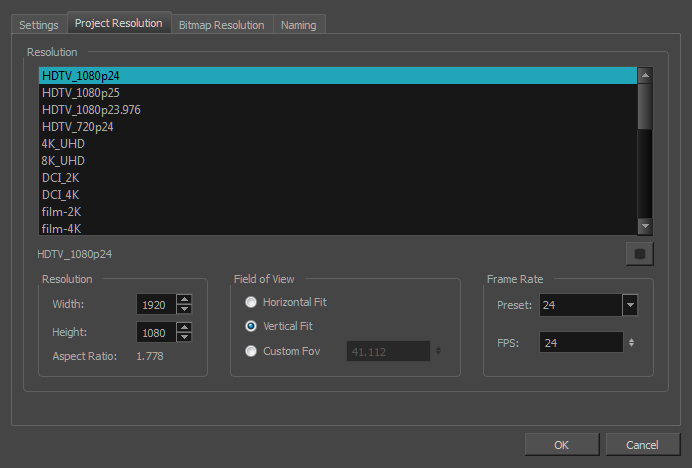
In the Project Resolution tab, you can define the project resolution, aspect ratio and frame rate for the current project:
| Parameter | Description |
|
Resolution |
Lets you define the project resolution. Your project resolution should match the format of the production for which you are creating the storyboard. |
|
HDTV: High Definition Television delivers a higher quality image than standard television because it has twice the standard number of scanning lines per frame. To take advantage of the superior quality, your output device must be compatible with HDTV technology to make this resolution setting useful. |
|
|
HDTV_Vertical: The "vertical resolution" of HDTV_Vertical refers to how the drawing grid is fit into the camera frame. When working with 12 or 16 field drawing grids, the grid is a different aspect ratio from the camera frame. When you fit vertically, you fit the grid with the top and bottom of the camera frame. NOTE The HDTV_Vertical format is ideal when importing images into an HD project.
|
|
| Mobile_Horizontal: | |
| Mobile_Vertical: | |
| Game_512: | |
|
Resolution |
Width: The width of the project, in pixels. |
|
Height: The height of the project, in pixels. |
|
| Aspect Ratio: The aspect ratio describes the number of pixels wide the project is divided by the height. Game Storyboard always works with square pixels. An aspect ratio of 1:1 indicates that the camera frame is square, and has the same number of pixels defining the width as it does defining the height. The aspect ratio is defined automatically when you enter values for the width and height of the camera frame. | |
|
Frame Rate |
Lets you set the frame rate for the project. The higher the frame rate, for example 30 fps, the smoother your animation will look, but the heavier it will be. The lower the frame rate, for example 12 fps, the choppier your animation may look, but the lighter it will be. |
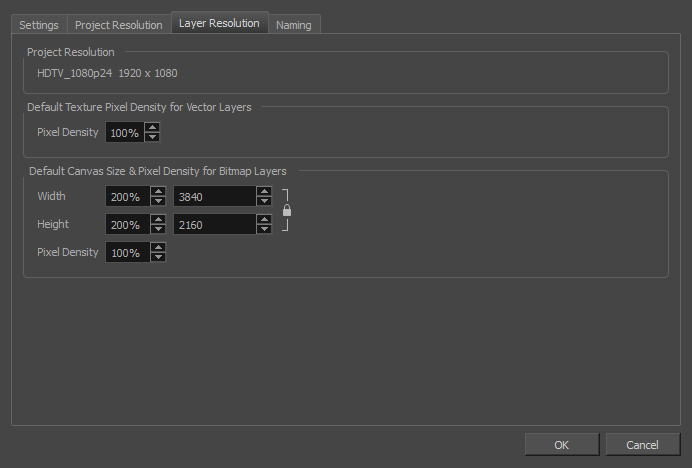
In the
| Parameter | Description |
|
Project Resolution |
The project resolution of the project, displayed for reference. |
| Default Texture Pixel Density for Vector Layers | |
|
Pixel Density |
Determines the amount of pixels to store in textured brush strokes for each pixel that displays when the drawing is not zoomed in or scaled up. For example, at 100%, zooming in or scaling up textured brush strokes will make them lose texture quality. If set to 200%, textured brush strokes can be zoomed in or scaled up until they're twice their original size without losing picture quality. |