It is possible to import Photoshop Document (.psd) images into Asset Editor. This allows you to create backgrounds, characters and other assets in Adobe Photoshop with multiple layers and effects, then import them in Asset Editor once you're finished editing them.
When importing a Photoshop Document (.psd) file, you have a choice of how to import the multiple layers into your Asset Editor scene:
- Single Layer: Imports the rasterized, flattened version of the PSD into a single layer in your scene.
-
Groups as Layers: This imports every group in the PSD file as a single layer in your Asset Editor scene. Then, every layer inside a given group is imported as a single drawing inside the layer in the Asset Editor scene.
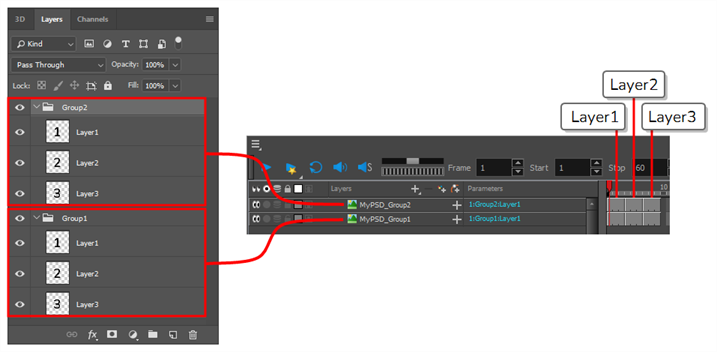
This can be useful if you want to create characters or props in Photoshop and import them in Asset Editor. You can create all the drawings for each layer in Photoshop and import them into Asset Editor in a single step.
-
Individual Layers: This imports each group in the PSD file as a group in Asset Editor, and each layer in the PSD file as a single layer in Asset Editor, reproducing the structure of your PSD file into your Asset Editor scene.
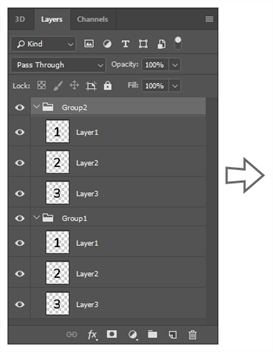
If any layer or group in your scene has a specific blending mode, this layer or group will be attached to a blending node. The blending node will have the same blending mode as the corresponding layer or group in Photoshop—provided that its blending mode is supported by Asset Editor—so as to reproduce the image in your PSD file as faithfully as possible.