License Wizard 2.0
License Wizard is the application used to activate, return or transfer a product, manage activated licenses, install a license server or connect to a license server.
Sign In
When you launch the License Wizard, you will be asked to sign in. Once you sign into the License Wizard, all your purchased Toon Boom Products will appear in the Activate/Return License in your Account page.
 How to Sign into your Toon Boom Account
-
Launch the License Wizard.
The License Wizard Sign in screen will appear.

-
Enter your username.
-
Enter your password.
-
Click Sign In.
Once signed in you will have access to all your Toon Boom products.
Sign Out
To sign out of your Toon Boom Account, you can click on your username in the top right corner of the License wizard.
For more information about activating your licenses, see Activate License.
How to sign out
-
Click your username in the top right corner of the License Wizard.
-
Click Sign Out.
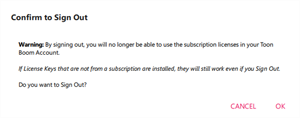
When you click sign out, a warning will appear alerting you that all your Toon Boom product licenses will be returned.
Windows
If you are launching License Wizard for the first time, you will be prompted to give it elevated privileges. This is because License Wizard needs to install the activation service for your product. To do this, you should be logged-in to an account with administrator privileges. You can also do this from a regular user account, provided that you can enter the username and password of an account with administrator privileges when prompted.
How to launch License Wizard on Windows 10
- Open the Start menu.
- Select Apps > [Product Name & Version] > License Wizard
How to launch License Wizard on Windows 11
- Open the Start menu.
- Select Apps > [Product Name & Version] > License Wizard.
macOS
Harmony 25 or later and Storyboard Pro 25 or later
To launch License Wizard, you must first launch the main application, then run License Wizard from the top menu.
How to launch License Wizard on macOS
- Open a Finder window.
- Navigate to Applications > Toon Boom [Product Name & Version].
-
Double-click on the icon of the application to launch it.
One of the following will happen:
- If you have not activated the software yet, it will prompt you to authorize it to make changes to your computer. Then, it will launch License Wizard.
- If you already activated the software, the software will launch and display its welcome screen.
-
In the top menu, select [Product Name] > [Product Name] Tools > License Wizard.
How to launch License Wizard on macOS after it has been launched for the first time
- Open a Finder window.
- Navigate to Applications > Toon Boom [Product Name & Version] > Tools > License Wizard
- Double-click on License Wizard.
GNU/Linux
On GNU/Linux, you must launch License Wizard with elevated privileges. You can launch License Wizard from a terminal. Starting with [Product Name] 25, you can also launch it from the Applications menu in GNOME.
How to launch License Wizard on GNU/Linux
- Log-in to an account with administrator privileges.
- Open the Applications menu.
-
Select [Product Name & Version] > License Wizard.
A terminal will open and prompt you for your account password to run License Wizard with elevated privileges.
- In the terminal, type in the password for your account and press Enter.
How to launch License Wizard for any version on GNU/Linux
- Log-in to an account with administrator privileges.
- Open a terminal.
-
Type in the following command:
$ sudo -E /usr/local/ToonBoomAnimation/harmony[Edition]_[Version]/lnx86_64/bin/LicenseWizard
- When prompted, type in the password for your account and press Enter.