Email Activation
If you have a product code for your product and you want to activate it on a machine that is not connected to the Internet, you can activate it by email. To do this, you can use License Wizard to generate an activate request, then use a computer that is connected to the Internet to send this activation request to the Toon Boom licensing department. If the request is valid, they will send you a license file that you can use to activate your product without an Internet connection.
 How to Activate a License through Email
-
Launch the License Wizard.
-
Select Menu > Activate License Key.
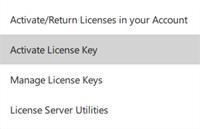
The Activation window will appear.
-
Click Email Activation.
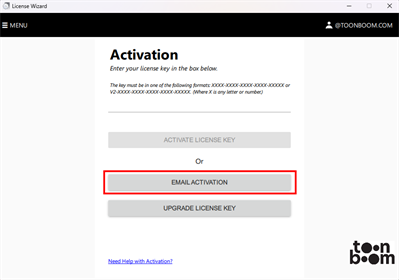
The Email Activation window will appear.
-
Click Email Activation.
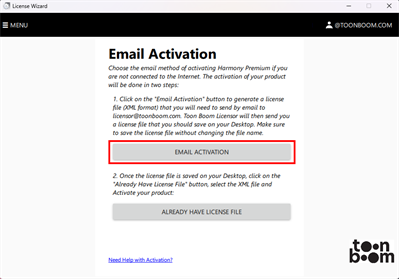
-
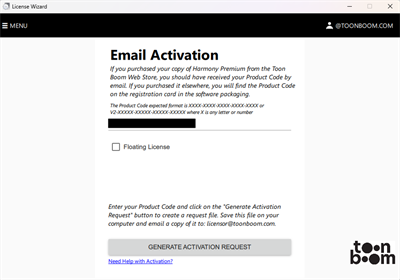
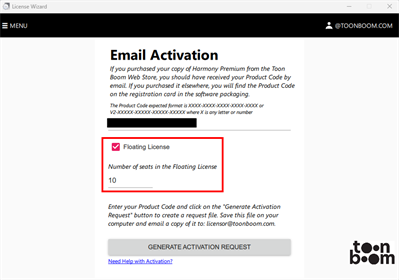
In the Product Code field, enter the product code you have received for the product you purchased.
-
If you are activating a server license; Enable Floating License.
-
In the Floating License field, enter the exact number of seats that were purchased with your license.
-
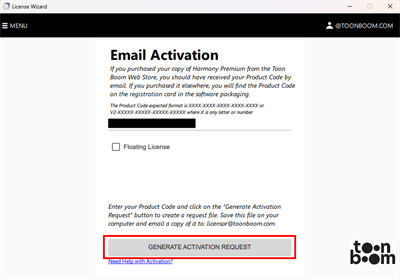
Click on Generate Activation Request to generate the activation request.
-
In the Save dialog, browse to the location where you want to save your license request, then click on Save.
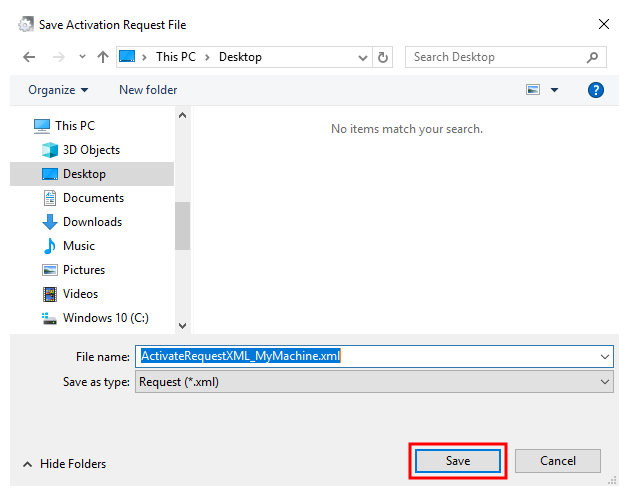 NOTE The activation request will be saved as an .xml file.
 -
You will now need to send the license request file to Toon Boom by email. If your machine has no internet access, use a removable storage device to move the request file to a machine that has internet access.
-
In an email client, write a new email and add the activation request to it as an attachment. Then, send the email to licensor@toonboom.com.
-
Wait for the response. You will typically receive your response within one business day.
-
The response will have an XML license file attached. Download this license file.
-
Select Menu > Activate License Key.
The Activation window will appear.
-
Click Email Activation.
The Email Activation window will appear.
-
Click Already Have License File.
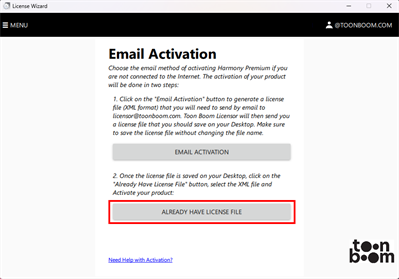
A Save dialog will appear.
-
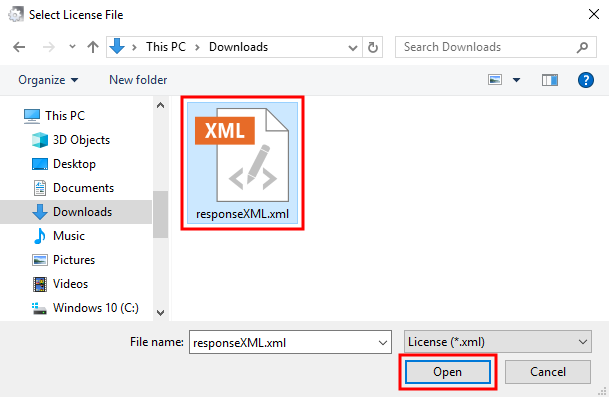
Browse to and select the responseXML.xml file you received by email.
-
Click on Open.
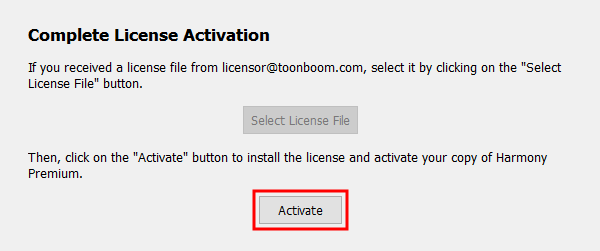
The Complete License Activation screen appears.
-
Click on Activate to process the response file and activate your product.
-
Click on Finish to close the License Wizard.