Harmony 25.2 Release Notes
Harmony 25.2, build 24991 (2026-03-25)
New Features
Art Layer Manager
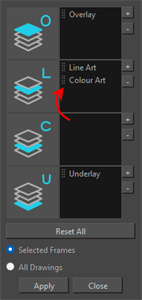
The Art Layer Manager is a new tool designed to simplify the management of art layers. It allows users to move, swap, duplicate, consolidate, and delete artwork from art layers by simply dragging them to the desired position. After arranging the art layers, the modifications can be applied to a single selected frame, a range of frames, or all drawings within the selected element nodes. This tool is accessible via the Drawing menu and can also be added into any customizable toolbar.
Editing Layer Attributes
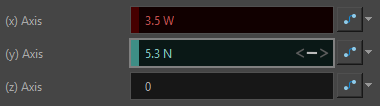
The Layer Properties dialog has been improved to allow the modification of attribute values even when a function is assigned. The values can be edited by typing in the value or by clicking and dragging the mouse over the value. Stop-Motion Keyframes are displayed in red, Motion keyframes are displayed in blue, and local values remain black. The colour is brighter when the current frame has a keyframe set and darker between keyframes. When you hover over an attribute’s value, buttons appear in the edit field to add and remove keyframes and to jump from one keyframe to another.
Bake to Subnode Override
The Bake to Subnode Override command is a new command in Harmony that can be used to copy subnode transformations from a 3D model or a Subnode Animation node to a Subnode Override node.
To use the Bake to Subnode Override command, select a 3D model in the Timeline or in the Node view, then do one of the following:
-
From the Timeline, right-click a 3D model and select the Select Bake to Subnode Override command.
-
Select Animation Menu > 3D > Bake to Subnode Override in the main menu at the top.
-
In the 3D Graph view, open the menu and select Subnodes > Bake to Subnode Override.
After selecting the Bake to Subnode Override command, a new Subnode Override node will be created and inserted in the cable below the 3D model.
You can also bake the animation to an existing Subnode Override node by using the Bake to Subnode Override command, while the Subnode Override is selected.
Applying Animation Layers from models to Subnode Override nodes
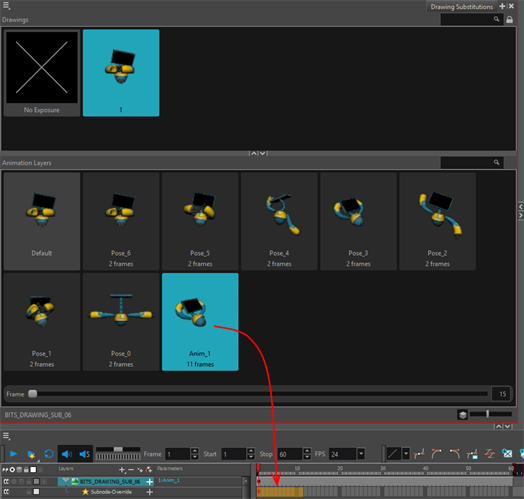
Animations contained in 3d models can now be easily transferred to the Subnode Override node, by dragging the animation layer from the Drawing Substitution view to the desired Subnode Override in the Timeline or Node view. Once transferred the animation keyframes are accessible and can be manipulated like any other transformations.
AI Generative Fill
The new AI Generative Fill operation can be used to generate visual content using written prompts.
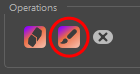
Once the desired area has been selected using the AI Mask Brush, click the new AI Generative Fill button. This action opens a window where you can enter a text prompt to generate content that will replace the masked region.
Audio Folder in the Library
The Library view now has an Audio folder that shows the audio files that are used in the scene. To organize your file, you can create folders or change the display name of the audio files. Creating folders and renaming audio files in the Library view does not have any effect on the file on disk.
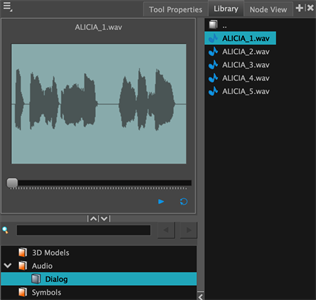
Audio files can be dragged from the Audio folder to your Timeline to insert them in the scene. Doing so automatically creates a sound layer in the timeline and inserts the audio file.
When an audio file is selected, a preview of the audio file appears in the left panel of the Library view. From the preview window, you can play, scrub, view the length of your audio file and visualise its waveform.
OpenGL Timeout
Interactive OpenGL renders will now stop if the render time exceeds the time value (in milliseconds) defined in the preferences. This is intended to help prevent heavy scenes from freezing Harmony’s interface for long periods. To adjust these limits, two render timeout preferences have been added to Harmony's OpenGL tab of the preferences.
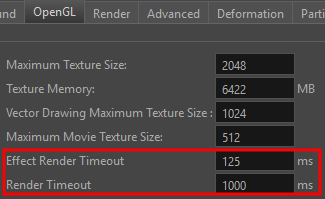
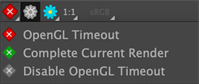
When the Effect Render Timeout time is exceeded for a given frame, a yellow icon will appear in the status bar at the bottom of the Camera view, indicating that not all effects were rendered. If the overall Render Timeout time is exceeded, a red icon will appear instead, indicating that the image that appears in the view is incomplete.
Pressing the icon in the status bar opens a menu with the following options:
-
OpenGL Timeout: Enables the timeout
-
Complete Current Render: Ignores the configured timeout limits for the current render, allowing it to finish. Timeout values will be respected for subsequent renders.
-
Disable OpenGL Timeout: This option ensures that the OpenGL renders always complete, regardless of the time required, by ignoring predefined OpenGL timeout values.
Improvements
3D
-
Harmony camera projection parameters (focal length and apertures) are now included in .atom and .usd animation exports. HAR-11246
Ember (AI Features)
-
An optional text prompt is now available when using the Expand Image AI Operation. HAR-11571
-
AI image operations can now process multiple images simultaneously, reducing the time required when generating content. HAR-11505
General
-
A warning is now displayed if OpenGL fails to initialize when opening a scene. HAR-11557
-
The bundled version of 7-zip has been updated to address potential security vulnerabilities. HAR-11521
-
The Image-Switch node now includes a "Pass Through" mode which can be used to preserve the Z-depth of individual nodes that are connected to it above. HAR-11337
-
The Optimize Palette and Optimize Drawings commands now verifies if the assets are used in all the versions of the opened scene. This can be turned off by unchecking the "Check Other Versions" option in their respective window. HAR-11223
Scripting
-
New functions were added to copy, move and clear art layers in drawings. HAR-11582
DrawingTools::copyArtLayer
DrawingTools::moveArtLayer
DrawingTools::clearArtLayer
Fixes
General
-
Harmony crashes on Windows when starting or when using the file browser due to conflicts with MSVCP and GROOVEEX.DLL HAR-11570
-
Attribute values in a node's Layer Properties are incorrectly reset to zero when a new, empty column is linked. HAR-11491
-
The "Face Selected to Draw" and “Look at Selected“ commands do not center the drawing properly when there is a translation on the element or peg HAR-11378
-
No error message is displayed when a node is renamed to a name that already exists. HAR-11367
-
The Master Controller Function Wizard fails when a Master Controller node is selected. HAR-11365
-
Attributes set to "2D Path" show blank values in the Timeline view. HAR-11353
-
The colour list background incorrectly displays as black instead of white when loading a scene from the command line using the white stylesheet. HAR-11329
-
Pressing Enter on the Save Script dialog on macOS incorrectly cancels the operation without saving the script. HAR-11288
-
The Xsheet "Move to Previous Drawing" shortcut jumps to the first frame of the current exposure instead of the previous drawing. HAR-11284
-
Cancelling the removal of an OpenGL Preview Settings preset in the Preferences incorrectly removes the preset. HAR-11558
3D
-
Harmony crashes when using the "Look At Selected" command if a sub-selection is active on a 3D model. HAR-11559
-
The 3D transform gizmo and 3D Graph selection do not appear until the mouse interacts with the Camera view. HAR-11290
-
The 3D gizmo fails to display when selecting a subnode in a Subnode Animation or Subnode Override node that shares an identical name with a subnode in a different module. HAR-11154
-
Small rotations in the Subnode Animation or Subnode Override nodes near the 180-degree axis cause Euler angles to jump and interpolate incorrectly in the opposite direction. HAR-11032
-
Reimporting an ATOM file into the same Peg that it was exported from results in incorrect transformations. HAR-10970
-
External Rendering nodes connected to SubnodeOverrides render 3D objects at incorrect positions during headless batch renders. HAR-11612
-
Disabling Vulkan 3D rendering causes visual rips and distorted textures in the OpenGL view. HAR-11526
Deformers
-
The Point Kinematic Output node doesn't follow drawing transforms or intermediate pegs HAR-11522
-
Semi-transparent drawings with deformations show visible overlaps and dark spots in renders. HAR-11333
Drawing
-
The "Strokes to Pencil Lines" menu command is incorrectly disabled when working in the Camera view. HAR-11431
-
Brushes with textures experience significant performance degradation after the scene has been played. HAR-11543
-
Harmony crashes when a selection is deleted while using the perspective tool override keyboard shortcut. HAR-11443
-
Harmony crashes when using the Pencil Editor tool to manipulate control points while pressing certain modifier keys. HAR-11316
-
Pencil lines that have been repainted at an angle sometimes change after other drawing tools are used. HAR-11224
-
The shape and angle of pencil line tips change inconsistently based on the current zoom level. HAR-11188
Effects/Comp
-
Harmony crashes when using a Surface Map node in some scenes. HAR-11575
-
Colour Override nodes don’t have any effect on 16-bit or floating-point textures when using "New RGB Only" or "New Alpha Only". HAR-11561
-
Height mattes on Volume Objects fail to render correctly when the scene's bit depth is set to 32-bit float. HAR-11493
Ember
-
Original and AI-expanded images in the "Expand Image" dialog appear at inconsistent scales and alignments. HAR-11590
-
Images generated using the "Expand Image" are incorrectly offset by 4 pixels on both axes. HAR-11555
-
Redundant image uploads during repeated AI operations increase processing time unnecessarily. HAR-11502
Import / Export
-
On Windows, importing H.264/YUV video files results in greyed-out colours as the full RGB range is incorrectly mapped. HAR-11602
-
Some PSD blend modes, such as "Linear Light" and "Difference", are incorrectly imported with and set to "Normal". HAR-11591
-
Movies exported using the OpenH264 codec exhibit a noticeable colour shift compared to the original scene colours. HAR-8392
Linux
-
Checkboxes in the Optimize Palettes and Optimize Drawings dialogs are not visible HAR-11322
OpenGL
-
When Render Blurs is enabled in the OpenGL preferences, switching between display nodes can cause corrupted results in the Camera view that has a blue tint. HAR-11516
-
The Colour Art module in "Flatten Mode" fails to mask correctly in OpenGL when "Composite Nodes Caching" is enabled. HAR-11439
-
An empty Colour Override node causes incorrect rendering of textures in the OpenGL preview. HAR-11364
-
Blending modes with legacy blending nodes render with incorrect results. HAR-11515
Rendering
-
Grayscale PSD files without an alpha channel fail to render correctly. HAR-11452
-
Semi-transparent pencil lines with sharp curves show overlapping triangles in renders. HAR-11319
Python
-
OMH::HarmonyProject::import_handler fails to apply alignment settings. HAR-11592
Scripting
-
Commands using the Process2 class fail when the provided file paths contain spaces. HAR-11600
-
LayoutExport::Params is missing several properties that exist in the "Export Layout Images" GUI . HAR-11581
-
The DrawingTools::createLayers fails to correctly apply all thickness path parameters. HAR-11563
Database
-
Control Center batch imports fail silently if a scene version was deleted from the database after the initial export. HAR-11366
-
Partial database update packages default to incorrect import options in WebCC, leading to missing scene data. HAR-11331
SWF
-
Harmony crashes while exporting to SWF when a Cryptomatte node is in the scene. HAR-11509
-
Pencil lines with beveled end caps export at an incorrect thickness to SWF files when attached to a deformer. HAR-11410
-
Freeform deformer transformations only update in SWF exports when a drawing swap occurs. HAR-11409