Before making a storyboard, you must have a script ready. You can type the script for your project directly into Game Storyboard, or you can import it from a file. Then, you can separate your script into captions for each of the panels in your storyboard, so as to provide the storyboard artist with the information they need to draw the content of each panel.
By default, each panel can store four different types of captions: Dialogue, Action Notes, Slugging and Notes. The Dialogue and Action Notes can be sourced straight from your script, and Notes can be used to store information such as scene headings, transitions and other useful information. Slugging captions are typically added later, while making the storyboard, to give timing indications regarding the dialogues and actions for the animatic.
Typing a Script
You can type the script for your storyboard directly into the Storyboard view.
 How to type the script for your Game Storyboard project
-
Open the Storyboard view. By default, it will be in the right pane of your workspace.
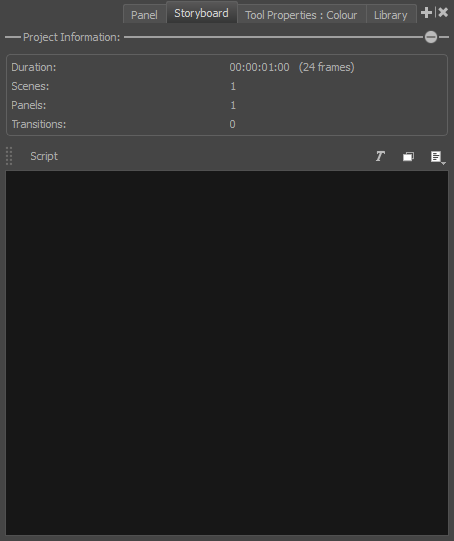
- Click the inside of the text field.
- Start typing your script.
Game Storyboard checks the spelling of every word you type into the Storyboard view, as well as into caption fields for your panels in the Panel view, against the words in a dictionary of a specific language. You can change the language of the spell checker to match the language in which you're writing.
By default, spell checking is done in English (US) if you launch Game Storyboard for the first time in English and in Spanish (ES) if you launch Game Storyboard for the first time in Spanish.
If you launch Game Storyboard for the first time in Chinese or Japanese, no dictionary will be selected by default, and you will have to select a dictionary to enable spell checking. Game Storyboard does not have Chinese and Japanese dictionaries.
How to change the dictionary used for automatic spell checking
-
In the top menu, select Captions > Spelling > Spell Check.
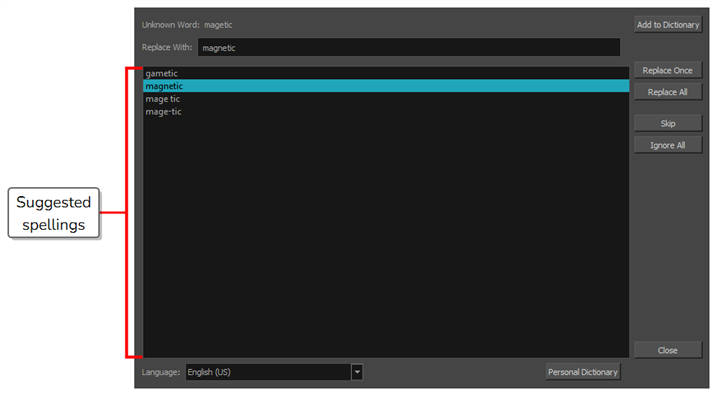
The Spelling dialog appears.
-
In the Language drop-down at the bottom, select the language in which you intend to type your script:
- English (AU): English (Australia)
- English (US): English (United States)
- English (CA): English (Canada)
- English (GB): English (United Kingdom)
- Español (ES): Spanish (Spain)
- Français (FR): French (France)
- 한국어 (KR): Korean
- Português (BR): Portuguese (Brasil)
- Português (PT): Portuguese (Portugal)
- русский (RU): Russian
- No Spellchecking: Disables spellchecking
Automatic spell-checking will now be done using the selected dictionary.
-
Click Close.
Spell Checking
At any time while or after typing your script or filling out your project's captions, you can use the Spelling dialog to go through and correct each spelling mistake that is detected by Game Storyboard's spell checker.
The Spelling dialog will go through every spelling mistake it can find in your project, including in its script and in its panel captions. It will start searching for spelling mistakes starting with the text field that is currently selected, at the position where the typing cursor is placed.
How to correct spelling mistakes in your project's script or captions
-
Place the typing cursor where you want to start checking for spelling mistakes:
-
If you want to check the spelling of your entire script, open the Storyboard view, and click inside the Script field, near the top-left corner, to position the typing cursor at the beginning of your script.

-
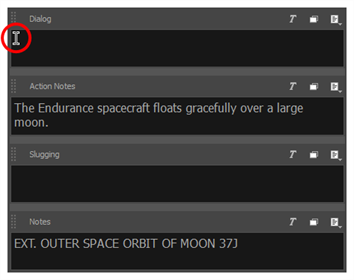
If you want to check the spelling of all of your project's captions, select the first panel in your project in the Thumbnails view, then open the Panel view and click inside the first caption field, near the top-left corner, to position the typing cursor at the beginning of this caption.
-
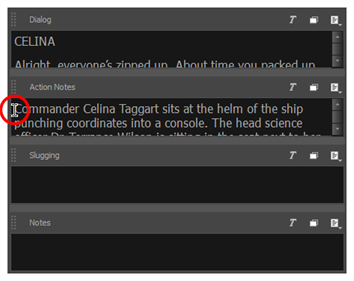
If you want to check the spelling of a specific caption in your project, select the panel containing that caption in the Thumbnails view, open the Panel view, then click inside the caption field you want to check, near the top-left corner, to position the typing cursor at the beginning of this caption.
-
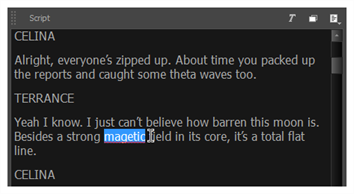
If you just want to see the spelling suggestions for a specific misspelled word, simply highlight that word.
-
-
In the top menu, select Captions > Spelling > Spell Check.
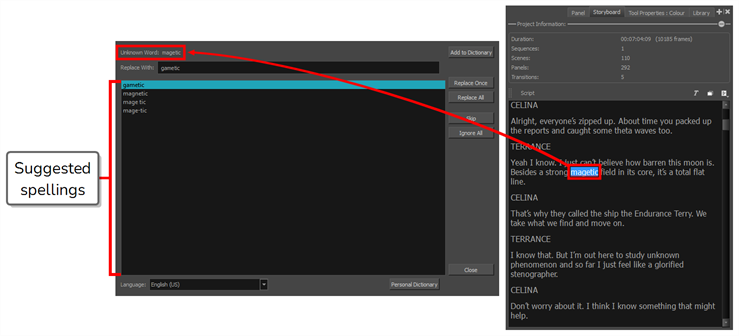
The Spelling dialog will appear. The first word it finds in your script or captions that does not exist in its dictionary will be selected in the Storyboard or Panel view. It will also appear in the Spelling dialog, next to the label Unknown Word:.
Suggestions for how to spell the word, if any exist, will be listed in the list below. The first suggestion in the list will be selected and will also appear in the Replace With: field.
- For each spelling mistake picked up by the Spelling dialog, do one of the following:
- To correct this specific instance of the word, either select the proper spelling in the spelling suggestion list, or type in the proper spelling in the Replace With: field, then click Replace Once.
To replace all instances of this word that you have spelled this way in your project with the proper spelling, either select the proper spelling in the spelling suggestion list, or type in the proper spelling in the Replace With: field, then click on Replace All.
NOTE This will replace the spelling of the selected word in your script and all of your project's captions.- To skip correcting this word and jump to the next spelling mistake, click Skip.
To ignore every instance of this word that is spelled in this specific way, click Ignore All.
NOTE Game Storyboard will ignore instances of this spelling mistake for the remainder of the session. Next time you launch Game Storyboard, it will resume picking up on this spelling mistake.- If the word is spelled properly and you don't want the Spelling dialog to pick up on it in the future, click Add to Dictionary. This will add the word to your personal dictionary, preventing Storyboard Pro from considering it a spelling mistake in the future.
Each time you take an action on a spelling mistake, the Spelling dialog will instantly jump to the next spelling mistake it finds as it cycles through your project's script and captions.
Once all the spelling mistakes have been fixed, the Uknown Word: field will display No errors found.
- Once you are done checking the spelling in your project, click Close.
Importing a Script
You can import a script in plain text (.txt), Rich Text Format (.rtf) or Final Draft XML (.fdx) directly into the Script field of the Storyboard view. You can also copy and paste it from your editor, or type it directly into the Storyboard view.
How to import a script into your Game Storyboard project
- In the Storyboard view, click the
 Menu button just over the right side of the text field and:
 - If your script is in plain text (.txt) or Rich Text Format (.rtf), select Import Caption.
- If your script is in Final Draft XML (.fdx) format, select Import Final Draft Script.
- In the file browser, locate and select your script file, then click on Open.
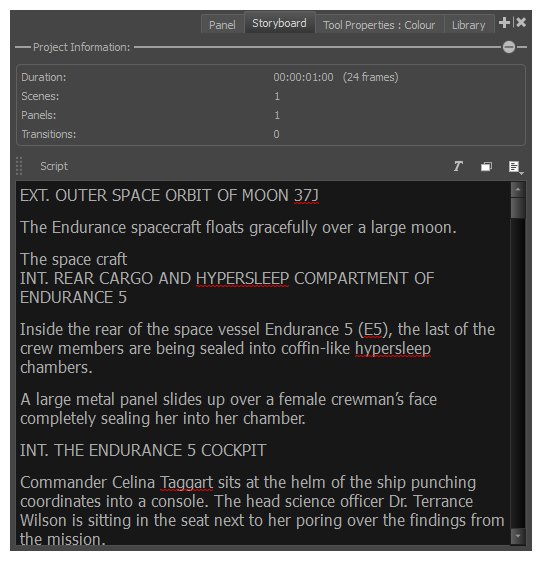
The script appears in the Script caption field.
Adding Captions
Once your script is imported, you can create the basic structure of your storyboard by creating empty scenes and panels based on the scene headings, actions and dialogues of your script, then filling the caption fields for each panel in your storyboard with information from your script.
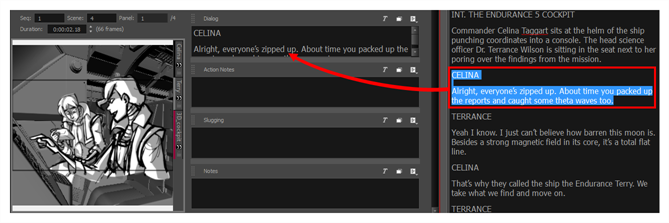
To do this, you can select an excerpt from your script in the Storyboard view, then drag and drop it into a caption field in the Panel view, instantly copying the selected text into the caption field for the current panel.
How to drag and drop text from the script into caption fields
- Switch to the Vertical workspace by doing one of the following:
- In the Workspace toolbar, click on the
 Vertical Workspace button.
 - From the top menu, select Windows > Workspace > Workspace > Vertical.
- In the right pane of your workspace, select the Storyboard tab.
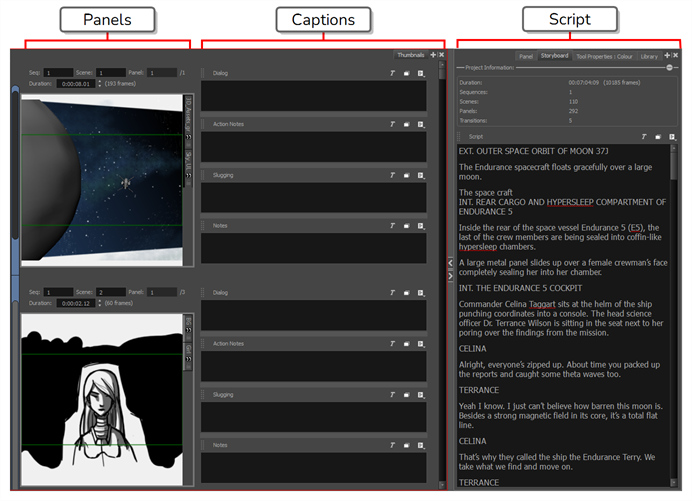
Your workspace now has a vertical roll of each panel in your storyboard to the left, with their corresponding caption fields in the middle, and the script for your storyboard to the right.
- In the Thumbnails view, scroll to the panel in which you want to add captions.
- In the Script caption field of the Storyboard view, select the part of your script that you want to add to a panel caption.
- In the Script caption, drag the selected text and drop it in the appropriate caption field of your panel.
-
Repeat this until you have copied all the necessary text for each of your panels into their caption fields.
TIP You can also drag and drop text from any panel caption to another panel caption, or from a panel caption to the script. - Once you are done, you can restore the workspace you were using by selecting it from the Workspace toolbar or from the top menu. For example, the default workspace is the Drawing workspace. To restore this workspace, do one of the following:
- In the Workspace toolbar, click on the
 Drawing Workspace button.
 - In the top menu, select Windows > Workspace > Drawing.
- In the Workspace toolbar, click on the