To easily identify elements in the Timeline view, you can change the colour of layers and columns.
 How to change the layer’s colour in the Timeline view
- In the Timeline view, click the Change Track Colour
 button of the layer you want to modify.

- In the Select Colour dialog box, select a new colour for your layer.
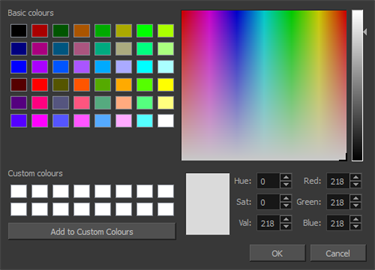
- Click OK.
The layer’s background colour is updated. In a Drawing layer, exposed cells are the brighter, selected colour for easy identification.

How to reset a layer’s colour in the Timeline view
- In the Timeline view, select the layers to reset.
- In the Timeline toolbar, click the Default Track Colour
 button (you may have to customize the toolbar to display it).