Producer 26.1
26.1.0 (build 3280, May 14, 2026)
In Summary
Producer 26.1 introduces new features to the Review Tool, Asset Versioning and Producer Link including Multi-Project and Profile Support.
Through Producer Link, users can upload scenes and assets that reside outside of linked Workspaces to any current active session with custom Profile parameters. From the Review tool you can deeplink to the Scene Focus view by clicking the Asset names. When dictating notes, you can now apply hyperlinks to external resources.
Numerous bugs and regressions have been addressed to ensure a more reliable experience for all users.
New Features
Producer Link
Multi-Project & Profile Support
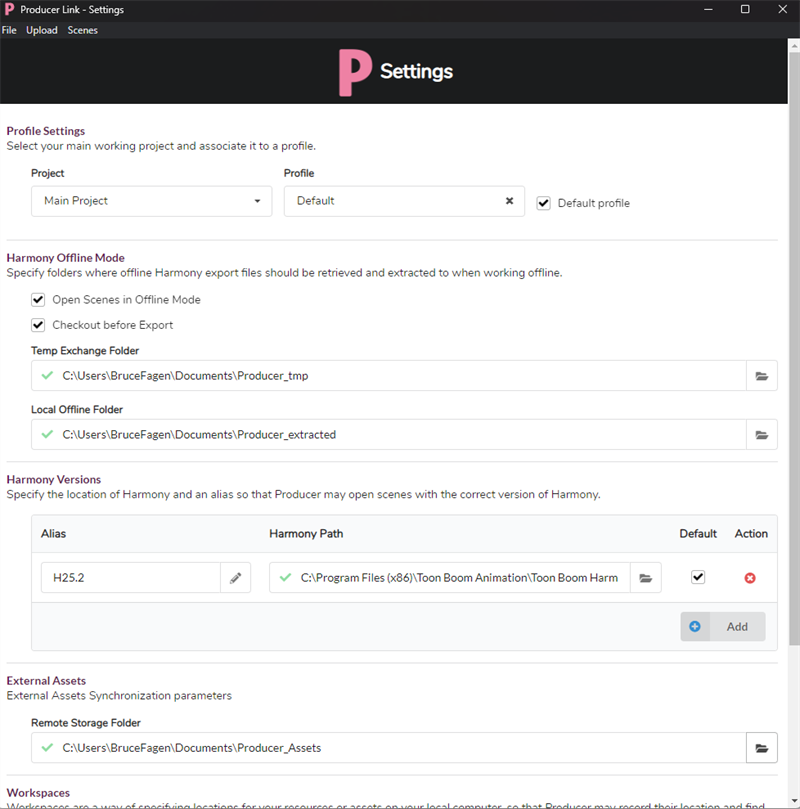
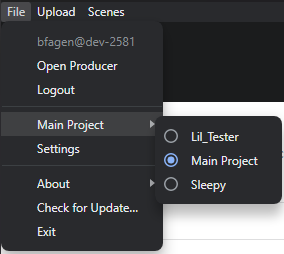
From the Producer Link Settings, you can select from your active projects in your Producer account and customize the parameters to create custom Profiles.
-
Projects: A dropdown menu listing all active projects in your Producer account.
-
Profile: A customized set of parameters in the Producer Link Settings dialogue.
NOTE When you modify the parameters of a Profile, all projects associated with that Profile will be affected. -
Default Profile: Input Profile parameters into an empty Producer Link Settings dialogue or use the last set of parameters that were used.
NOTE When you open Producer Link Settings, the Default Profile checkbox is active.
Uploading from Producer Link
-
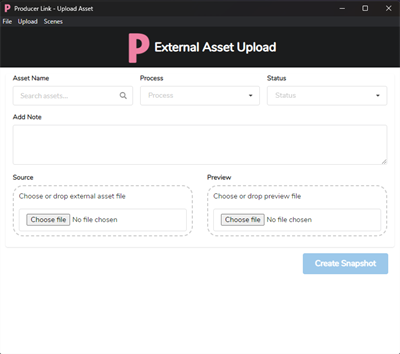
Notes: You can add hyperlinks to external resources in the Notes section anywhere within Producer that notes can be added.
-
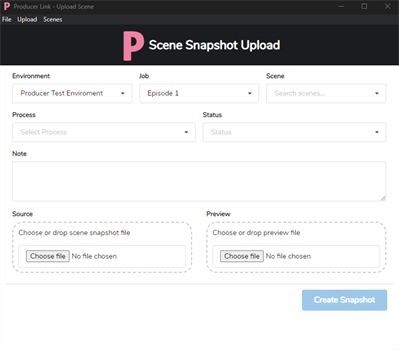
Status: When using the Upload Scene Snapshot and/or External Asset Upload, you can apply a status to your scene or asset to be uploaded into its intended place in the Workflow.
External Asset Versioning
Using the External Assets feature, you can dictate the remote folder path that Producer will source your assets.
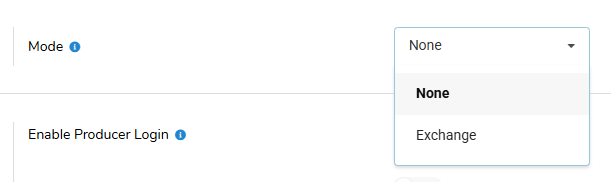
You can select from the two following Modes:
-
None: Will upload assets that reside in a Workspace linked to Producer Link.
-
Exchange: Can upload assets that reside outside of a Workspace linked to Producer Link.
 NOTE In order to use the Exchange Mode, you need to specify a location for the “Remote Folder”.
 -
Pattern: The path that your uploaded asset will follow when saved.

The Pattern textbox will display the following available options:
-
<type>: asset type code. (e.g.: PSD)
-
<category>: asset category code. (e.g.: BG_LANDSCAPE)
-
<name>: asset name.
-
<process>: The uploaded snapshot process name. (e.g.: BG_Layout)
-
<version>: The uploaded snapshot version. (e.g.: 15)
-
<ext>: The uploaded file extension including the “.” prefix. (e.g.: .psd)
NOTE The Pattern option only appears when the Mode is set to Exchange.NOTE The default Pattern will be pulled from the External Assets section of the General Settings in Producer Link.NOTE The Pattern can be manually modified by the user. You can delete or rename the text in the Pattern. -
Asset Versioning in Producer Link
In the Producer Link Settings, under External Assets when in Exchange Mode, you can set a path for the Remote Folder. This folder designates a path to store your uploaded assets in a remote folder (Workspace).

Scene Focus View
-
You can copy and paste the Producer URL in order to share the Scene Focus View with other collaborators on your project.

Review Tool
-
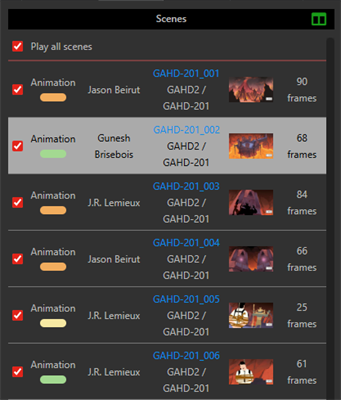
Scene List: Assets display Environment, Job and Asset names.
-
Deep Linking: Asset names now act as hyperlinks, launching the Scene Focus View for the selected asset when clicked.
Harmony Scripts
-
TB_Producer_AssetSnapshot.js: Will render an asset directly from Harmony to Producer.
-
TB_Producer_SceneSnapshot.js: Will render a scene directly from Harmony to Producer.
Improvements
Producer Link
-
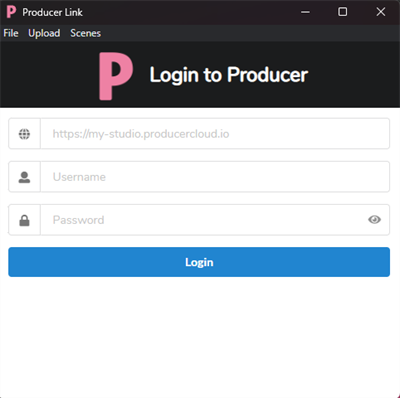
You can show/hide the password in the Producer Link login screen.
Review Tool
-
The Review Tool displays the environment and job names in addition to the asset’s name in the scene list.
Video & Snapshot Processing
-
Upgrade ffmpeg to 8.1 for improved video compatibility.
-
Now supports Apple ProRes files.
Technical changes
-
Increased the log limit for API transactions.
-
Improvement to metadata handling file uploads.
Bug Fixes
General
-
When your assigned tasks are retired, the open tasks will no longer fail.
-
Snapshot errors only appear for the main user and not affect the other users on the project.
-
Movies with sound and video discrepancies upload with an added warning.
-
Uploading and processing are handled seamlessly when the user uploads the same file (name) twice.
-
Harmony template files and backdrops in the Node view are no longer missing when using the Harmony scripts to generate a Producer snapshot.
-
Upon synchronization, the toast messages are now accurate.
Producer Link
-
In the Scene Snapshot Upload dialog, Jobs and Scenes will refresh when switching Environments.
-
Remote storage folder path is no longer erased when launched.
-
Harmony Scene Snapshot Script will successfully upload larger scenes to WebCC.
Review Tool
-
Frames no longer appear unexpectedly from the next scene in the Review Tool.
Scene Focus View
-
When editing external references for assets in the Scene Focus View, the session will continue to be responsive.
-
In the Work Hours dialog, Assets no longer appear as "undefined (Asset)".
-
Asset Manager: Refresh List button no longer crashes.
Video and Snapshot Processing
-
Apple ProRes 422 exported movies from Harmony now generate movie and file icons.
-
Apple ProRes 422 and Avid DNxHD(HR) previews are now reviewable.
-
Will validate and save parameters with uploading a video snapshot.
UI/UX
-
Can delete Snapshots that were uploaded with errors.
-
Can now delete with empty corrupted snapshots.
-
Preview Thumbnail is no longer missing the thumbnail information icon.
-
Empty or corrupt files display "No Preview".