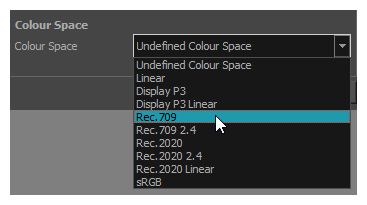
Setting the Colour Space of an Element Layer
You can set the colour space of each imported bitmap images in your scene individually. For Toon Boom vector and bitmap drawings by default, Harmony uses sRGB colour space.
When rendering your scene, the colours of each imported bitmap images will be converted from their respective colour space to the scene’s colour space before they are composited together with your scene’s effects. The colours of the Harmony bitmap drawing layers and vector drawing layers will be converted from sRGB colour space to the scene’s colour space, ignoring the colour space selection of the drawing layers.
If “Read Toon Boom Drawings Using sRGB Colour Space” option is disabled, you can change the colour space of vector TVG elements. -see Setting the Working Colour Space for a Scene.
-
Harmony Drawing Layers: When adding a new element layer, by default sRGB is used as the layer’s colour space. When reading the images to render in OpenGL or Render mode, Harmony uses the colour space specified in the Colour Space section of the Element node's Layer Properties to read the colour values. Colour values will then be converted to the scene colour space for compositing.
-
Imported Bitmap Images: Images are imported and converted to Toon Boom Bitmap Drawings (TVG). These are read using sRGB before begin converted to the scenes colour space if the colour space is different. This only happens when "Read Toon Boom Drawings Using sRGB" is selected in the Scene Settings. If this setting is unchecked, the TVGs are read using the selected import colour space.
When adding a new element layer, by default sRGB is used as the layer’s colour space.
 How to set the colour space of an element layer
-
Open the Layer Properties for the element layer for which you want to select a colour space by doing one of the following:
- In the Timeline view, double-click on the element layer but outside of its name (such as on the
 icon).
 - In the Timeline view, right-click on the element layer and select Layer Properties.
- In the Node View, locate the element node and click on its
 Layer Properties icon.
 - In the Node View, right-click on the element layer and select Layer Properties.
- Add the Layer Properties view to your workspace, then select the element layer in the Timeline view.
- Add the Layer Properties view to your workspace, then select the element layer in the Timeline or Node view.
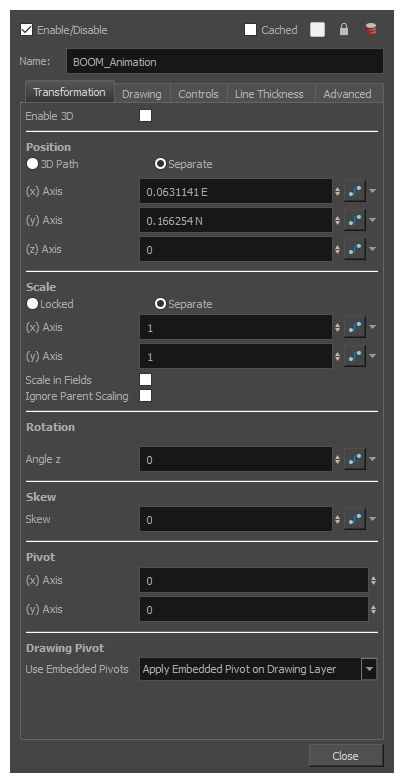
- In the Timeline view, double-click on the element layer but outside of its name (such as on the
-
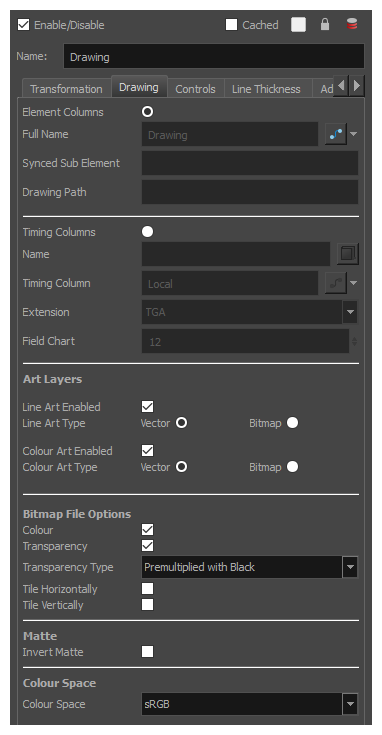
In the element’s layer properties, select the Drawing tab.
-
At the bottom, in the Colour Space drop-down, select the colour space for the element layer.